The Xbox One controller remains one of gaming’s most versatile peripherals, and going wireless unlocks its full potential. Whether you’re kicking back on the couch for a marathon Halo session, streaming from your PC, or gaming on your phone during a commute, cutting the cable makes everything better. But wireless Xbox controllers aren’t all created equal, and getting the most from yours means understanding how they connect, what they’re compatible with, and which model fits your playstyle.
This guide covers everything from pairing processes and Bluetooth quirks to battery strategies and the best controllers you can buy in 2026. If you’ve ever wondered why your controller won’t connect, whether you need the Elite Series 2, or how Xbox Wireless differs from standard Bluetooth, you’re in the right place.
Table of Contents
ToggleKey Takeaways
- The wireless Xbox One controller offers freedom of movement across 20-30 feet and works seamlessly across Xbox consoles, PCs, and mobile devices for a unified gaming experience.
- Xbox Wireless provides lower latency (3-5ms) optimized for gaming, while Bluetooth offers universal compatibility with higher latency (8-15ms)—choose based on your device and competitive needs.
- The standard Xbox Wireless Controller ($59.99) is reliable and versatile for most gamers, while the Elite Series 2 ($179.99) justifies its premium price for competitive players seeking customization and superior build quality.
- Controller pairing is straightforward: hold the Pair button until the Xbox button flashes, then select your device—most issues stem from low batteries, interference, or outdated firmware.
- Maximize battery life by disabling rumble when not needed, keeping firmware updated, and choosing between disposable AAs (30-40 hours) or rechargeable packs like Microsoft’s Play & Charge Kit ($24.99).
- Regular maintenance including firmware updates, button cleaning with isopropyl alcohol, and stick drift recalibration through the Xbox Accessories app extends your wireless controller’s lifespan significantly.
What Is a Wireless Xbox One Controller and How Does It Work?
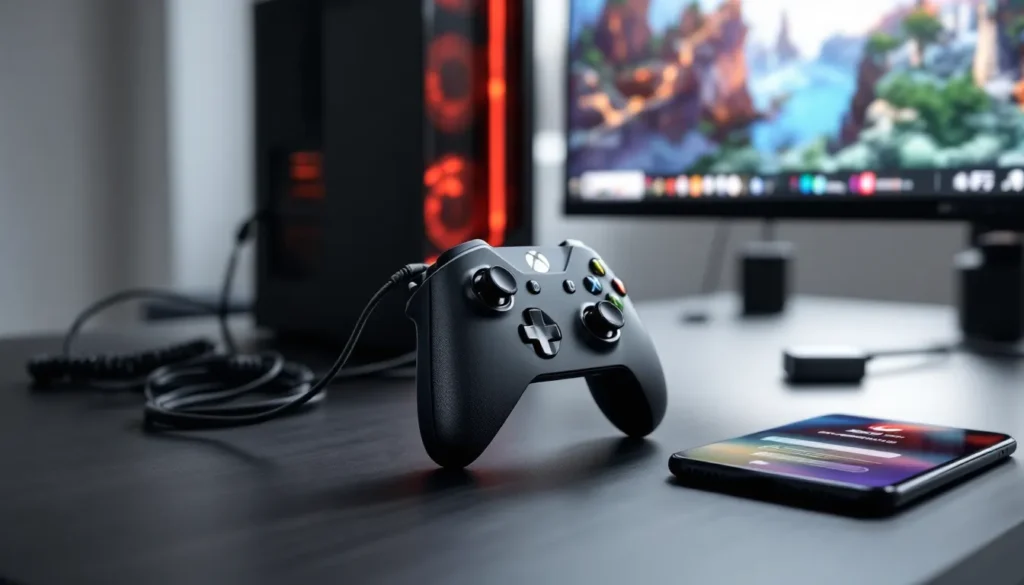
A wireless Xbox One controller is exactly what it sounds like: an official or third-party gamepad that connects to your console, PC, or mobile device without a USB cable. Microsoft introduced the Xbox Wireless protocol with the Xbox One in 2013, and it’s been refined with each hardware iteration, including the Xbox Series X
|
S controllers, which remain backward-compatible with Xbox One consoles.
The magic happens through two main wireless technologies: Xbox Wireless (a proprietary 2.4 GHz protocol) and Bluetooth (available on newer models manufactured after 2016). Xbox Wireless delivers lower latency and better range when paired with Xbox consoles or PCs equipped with the Xbox Wireless Adapter. Bluetooth, on the other hand, offers universal compatibility with devices like smartphones, tablets, and laptops without needing extra hardware.
Most wireless Xbox controllers use AA batteries or rechargeable battery packs and communicate with the host device through a simple button-press pairing sequence. Once paired, they remember the connection for quick reconnection next time you power them on. The controller’s onboard firmware handles input polling rates, rumble feedback, and button mapping, while the host device translates those inputs into in-game actions.
One key thing to know: not all Xbox One controllers have Bluetooth. If your controller has a plastic shell around the Xbox button (rather than the button being part of the front faceplate), it’s an older model that only supports Xbox Wireless. You’ll need the Xbox Wireless Adapter to use it wirelessly on PC or mobile.
Key Benefits of Using a Wireless Xbox One Controller
Freedom of Movement and Comfort
Wired controllers tether you to your setup. That’s fine for competitive play at a desk, but it kills the vibe when you’re trying to relax. Wireless controllers let you sit anywhere within a 20-30 foot range (depending on obstacles and interference), lean back, adjust posture, and move without yanking a cable.
This matters more than you’d think. Long sessions get uncomfortable fast when you’re locked in place. Being able to shift positions, stretch out on the couch, or even walk around during cutscenes reduces physical strain and keeps you focused. Plus, no cable means no accidental yanks that send your console crashing off the shelf, a surprisingly common tragedy.
Multi-Platform Compatibility
The wireless Xbox One controller isn’t just for Xbox. It’s become the de facto standard for PC gaming, works seamlessly with Android and iOS devices (via cloud gaming or native games), and even pairs with some smart TVs and streaming devices. That versatility means one controller handles your entire gaming ecosystem.
Xbox Game Pass Ultimate subscribers especially benefit from this. You can start a game on your console, continue on your phone during a break, and finish on your PC, all with the same controller. The experience stays consistent across platforms, which is huge when muscle memory matters. For those exploring rechargeable battery options, the multi-platform flexibility becomes even more valuable since you’re using the same controller everywhere.
How to Connect Your Xbox One Controller Wirelessly
Connecting to Xbox One and Xbox Series X
|
S Consoles
Pairing with Xbox consoles is dead simple. Turn on your console, then press and hold the Xbox button on your controller until it lights up. Next, press the Pair button on your console (it’s a small circular button on the front of Xbox One S/X and Series X
|
S, or on the left side of the original Xbox One).
The Xbox button on your controller will flash rapidly, then stay solid once paired. This takes about 5-10 seconds. Your console can remember up to eight controllers, and they’ll automatically reconnect when powered on within range. If you’re switching between multiple consoles frequently, you’ll need to re-pair each time, the controller only remembers one Xbox Wireless connection at a time.
Connecting to Windows PC via Bluetooth
For Bluetooth pairing on Windows 10 or 11, make sure your PC has Bluetooth capability (most laptops do: desktops often need a USB dongle). Open Settings > Devices > Bluetooth & other devices and click Add Bluetooth or other device. Select Bluetooth from the menu.
On your controller, press and hold the Pair button (the small button on the top edge near the USB port) until the Xbox button starts flashing rapidly. Your PC should detect “Xbox Wireless Controller” in the available devices list. Click it, wait for pairing to complete, and you’re set.
One heads-up: Bluetooth introduces slightly more input lag compared to Xbox Wireless via the dedicated adapter. For casual gaming it’s negligible, but competitive players notice the difference. Microsoft’s Xbox Wireless Adapter for Windows (~$25) eliminates this lag and supports up to eight controllers simultaneously.
Connecting to Mobile Devices (Android and iOS)
Mobile pairing works similarly to PC. On Android, go to Settings > Connected devices > Pair new device. On iOS (14.5 or later required for full Xbox controller support), open Settings > Bluetooth.
Hold the controller’s Pair button until the Xbox button flashes. Your phone should show “Xbox Wireless Controller” in the available devices. Tap it to pair. The connection usually takes 3-5 seconds.
Once connected, the controller works with Xbox Game Pass cloud gaming, native games that support controllers (like Genshin Impact, Call of Duty Mobile, and Fortnite), and various emulators. iOS support has improved dramatically since 2019, though some games still require specific button mapping adjustments.
Understanding Xbox Wireless vs. Bluetooth: What’s the Difference?
Xbox Wireless and Bluetooth both cut the cord, but they’re built for different purposes. Xbox Wireless is Microsoft’s proprietary 2.4 GHz protocol optimized specifically for gaming. It prioritizes low latency (typically 3-5ms), supports high polling rates for responsive input, and maintains stable connections even with multiple controllers active simultaneously.
Bluetooth is a universal standard designed for all kinds of devices, headphones, keyboards, mice, and yes, controllers. It’s incredibly convenient since nearly every modern device supports it, but the trade-off is higher latency (usually 8-15ms) and occasionally less reliable connections in crowded wireless environments.
For Xbox consoles, the difference is irrelevant, they use Xbox Wireless exclusively, delivering optimal performance. For PC gaming, you’ve got options. The Xbox Wireless Adapter (~$25) gives you console-quality responsiveness and supports up to eight controllers. Bluetooth costs nothing (if your PC already has it) but introduces that small input lag.
How noticeable is 5-10ms of latency? In single-player RPGs, racers, or adventure games, you probably won’t feel it at all. In competitive shooters, fighting games, or rhythm games where frame-perfect timing matters, that lag becomes tangible. Players serious about performance spring for the adapter.
One more consideration: battery life. Xbox Wireless tends to drain batteries slightly faster than Bluetooth because of the higher polling rate and more frequent data transmission. The difference is maybe 10-15% in real-world use, but it’s worth knowing if you’re deciding between connection methods for extended portable gaming.
Best Wireless Xbox One Controllers in 2026
Official Xbox Wireless Controller
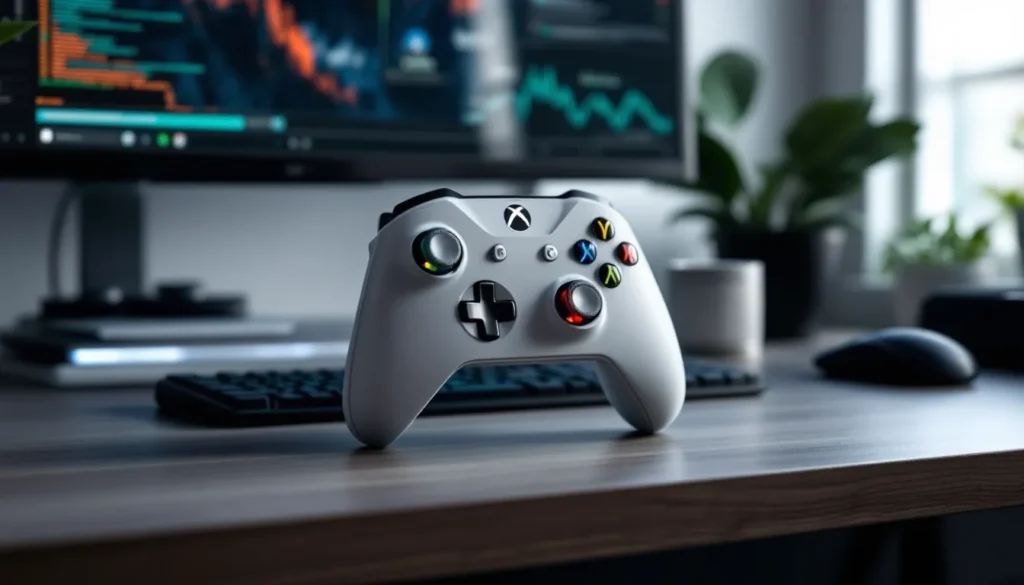
The standard Xbox Wireless Controller (2020 revision, compatible with Xbox One, Series X
|
S, and PC) remains the baseline for good reason. It’s $59.99 MSRP, widely available, and delivers everything most gamers need: solid build quality, textured grips, Bluetooth support, and a 3.5mm headphone jack.
Microsoft refined the design with a slightly smaller form factor and a new d-pad with a subtle dish shape that improves precision for fighting games and menu navigation. The Share button (added in 2020) makes capturing clips and screenshots effortless. Battery life averages 30-40 hours on standard AAs, and it works flawlessly across the entire Xbox ecosystem.
You can grab these in a dozen colors, Robot White, Carbon Black, Shock Blue, Electric Volt, and various special editions. For most players, this is the controller to buy. It’s reliable, affordable, and universally compatible.
Xbox Elite Wireless Controller Series 2
The Elite Series 2 is Microsoft’s premium option at $179.99. It’s aimed at enthusiasts and competitive players who want maximum customization. The build quality is noticeably better: rubberized grips, steel components, adjustable-tension thumbsticks, and shorter hair-trigger locks for faster shooting in FPS games.
What sets it apart is the Xbox Accessories app integration. You can remap every button, create multiple profiles saved to the controller itself, adjust stick sensitivity curves, and swap components (thumbsticks, d-pads, paddles). The included carrying case doubles as a charging dock, and the internal rechargeable battery lasts around 40 hours per charge.
Is it worth the extra $120? If you play competitively, stream, or just want the best feeling controller available, absolutely. Casual players will be fine with the standard model, but once you’ve used an Elite, going back feels like downgrading. Reviews from TechRadar and other outlets consistently rate it as one of the best controllers ever made, though durability concerns (especially with the rubberized grips peeling after heavy use) have been reported.
Third-Party Wireless Controller Options
Third-party options have improved dramatically. PowerA Enhanced Wireless Controllers (~$49.99) offer official Xbox Wireless connectivity, mappable buttons, and decent build quality at a lower price point. They use AA batteries (no rechargeable option) and lack the premium materials of Microsoft’s controllers, but they’re solid budget picks.
Razer Wolverine V2 Chroma ($149.99) competes with the Elite Series 2, adding RGB lighting and Razer’s signature styling. It’s wired, though, so not ideal if you want fully wireless freedom. For those who do prioritize wireless, testing from outlets like PCMag suggests sticking with Microsoft’s official controllers unless you need specific features like additional programmable buttons or Razer’s ecosystem integration.
Avoid ultra-cheap knockoffs from unknown brands. They save you $20-30 upfront but suffer from connection drops, stick drift, and poor build quality within months.
Troubleshooting Common Wireless Connection Issues
Controller Won’t Pair or Connect
If your controller refuses to pair, start with the basics. Verify it has working batteries, obvious, but controllers with low power act erratically. Try fresh AAs or a known-good rechargeable pack. Press the Xbox button: if it doesn’t light up at all, the batteries are dead or installed incorrectly.
Next, make sure you’re within range and there aren’t major obstacles. Wireless signals weaken through thick walls, metal furniture, and other electronics. For PC pairing via Bluetooth, double-check that your Bluetooth is enabled and not already connected to the maximum number of devices (usually 7-8).
If the controller still won’t pair, force a reset. There’s a tiny pinhole button on the back near the L2 trigger, use a paperclip to press and hold it for about 10 seconds. This clears the controller’s memory and resets it to factory pairing mode. After resetting, try pairing again from scratch.
For Xbox consoles, try updating the controller’s firmware. Connect it via USB cable, go to Settings > Devices & connections > Accessories, select your controller, and check for updates. Firmware patches occasionally fix pairing bugs.
Input Lag and Latency Problems
Feeling input lag ruins precision gaming. First, identify whether it’s the controller or your display. Test the same controller on a different device. If the lag follows the controller, it’s a wireless issue. If not, your TV’s game mode might be disabled or your PC’s GPU drivers need updating.
For Bluetooth connections on PC, latency issues are common when using built-in laptop Bluetooth adapters. These often share bandwidth with Wi-Fi on the same chip, causing interference. A dedicated USB Bluetooth 5.0 dongle (~$15) can reduce lag significantly. Better yet, grab Microsoft’s Xbox Wireless Adapter for the lowest possible latency.
Interference matters too. Other 2.4 GHz devices (routers, microwaves, wireless headphones) can crowd the spectrum and cause stuttering or dropped inputs. Try changing your router’s Wi-Fi channel or moving your adapter/console away from congested areas. Using the 5 GHz band for Wi-Fi (if available) frees up 2.4 GHz for your controller.
Battery Life and Power Management
If your controller drains batteries absurdly fast, something’s wrong. Standard AA batteries should last 30-40 hours: rechargeable packs around 30-35 hours. If you’re getting less than 20, investigate.
First, disable features you don’t need. Rumble (vibration) is a major battery drain, you can reduce or disable it in game settings or the Xbox Accessories app. Lowering controller volume (if you use a headset plugged into the 3.5mm jack) also helps since the controller powers that audio.
Older controllers sometimes develop power management issues where they don’t enter proper sleep mode, staying partially active even when “off.” Updating firmware usually fixes this. If not, the internal power circuitry might be failing, a sign it’s time to replace the controller.
For wireless audio enthusiasts, pairing an Xbox One Bluetooth headset directly to your console rather than plugging into the controller can extend battery life by 10-15% since the controller isn’t amplifying audio.
Maximizing Your Wireless Xbox One Controller Experience
Battery Options: Rechargeable vs. Disposable
The AA battery debate never ends. Disposables offer convenience, swap in fresh batteries and you’re back instantly. Rechargeable packs save money long-term and reduce waste, but require planning (charging overnight or keeping a spare charged pack handy).
Microsoft’s official Play & Charge Kit ($24.99) includes a 1,400mAh battery pack and USB-C charging cable. It delivers around 30 hours per charge and seamlessly integrates with the controller. You can charge while playing via USB, which is clutch during marathon sessions.
Third-party alternatives like PowerA Charging Station (~$19.99) or Venom Twin Charging Dock (~$22.99) let you charge two controllers simultaneously. These use custom battery doors with charging contacts, so you just drop the controller on the dock, no cables.
For players who prefer standard rechargeables, Eneloop Pro AAs (2,550mAh) offer superior capacity. They outlast most proprietary packs by 10-15 hours and work in any device. The upfront cost is higher (~$25 for four batteries plus charger), but they pay for themselves within months.
Firmware Updates and Maintenance
Keeping your controller’s firmware updated prevents bugs and occasionally adds features. Microsoft pushes updates through Xbox consoles automatically when connected via USB. For PC, use the Xbox Accessories app (available free in the Microsoft Store) to check for and install updates.
Recent updates have improved Bluetooth pairing stability, refined rumble motor control, and fixed rare button-mapping glitches. It’s worth checking every few months, especially if you notice odd behavior.
Physical maintenance matters too. Clean your controller regularly, accumulated grime on buttons and thumbsticks affects responsiveness. Use isopropyl alcohol (70% or higher) on a microfiber cloth to wipe down surfaces. For stubborn dirt around thumbsticks, a toothpick carefully dislodges debris without damaging components.
Stick drift (where analog sticks register movement when centered) plagues all controllers eventually. It’s caused by worn potentiometers inside the stick mechanism. Some players successfully recalibrate via the Xbox Accessories app, but severe drift usually requires replacement. Extended warranties or third-party repair services (like those mentioned in forums on Pure Xbox) can save you from buying a new controller outright.
For long-term storage, remove batteries to prevent corrosion from leakage. Store controllers in a cool, dry place away from direct sunlight, heat degrades internal plastics and battery connections over time.
Conclusion
Going wireless with your Xbox One controller transforms how you game, whether you’re sprawled on the couch, hunched at a desk, or gaming on the go. The setup process is straightforward across consoles, PCs, and mobile devices, though understanding the Xbox Wireless vs. Bluetooth trade-offs helps you optimize for your specific needs.
Choosing the right controller comes down to budget and priorities. The standard Xbox Wireless Controller handles 95% of gamers perfectly, while the Elite Series 2 delivers premium features for those who demand more. Third-party options fill niche needs, but quality varies wildly.
Troubleshooting wireless issues usually boils down to interference, outdated firmware, or battery management. A little maintenance goes a long way toward extending your controller’s lifespan and keeping performance sharp.
Whether you’re upgrading your current setup or buying your first wireless controller, the versatility and freedom of cutting the cable makes it one of the best investments you can make in your gaming experience. Now get out there and put that wireless freedom to good use.