
You’re mid-match, the battery icon blinks red, and your controller dies at the worst possible moment. Sound familiar? While wireless Xbox controllers offer freedom of movement, a USB cable provides reliability that batteries just can’t match. Whether you’re grinding ranked matches, streaming on PC, or just tired of swapping batteries every few days, a USB cable transforms your Xbox One controller into a dependable wired peripheral.
But not all USB cables are created equal. Some only charge your controller, others handle data transfer for gaming, and a few do both while surviving years of couch-to-console abuse. With Xbox One controllers using micro-USB and newer Xbox Series controllers switching to USB-C, choosing the right cable matters more than you’d think. This guide breaks down everything you need to know about Xbox One controller USB cables, from picking the right type to troubleshooting connection issues that’ll make you want to throw your controller (please don’t).
Table of Contents
ToggleKey Takeaways
- An Xbox One controller USB cable eliminates input lag and wireless dropouts, providing a wired connection that converts wireless controllers into reliable peripherals for competitive gaming and PC setups.
- Original Xbox One controllers use micro-USB connectors while newer Xbox Series controllers use USB-C—ensure you buy a data cable, not a charging-only cable, to enable both gameplay and power functionality.
- A 10-foot braided cable with reinforced strain relief, gold-plated connectors, and explicit data transfer support offers the best balance of durability and performance without excessive cost.
- Proper cable maintenance—avoiding sharp bends, unplugging by the connector, and keeping spare cables—extends lifespan to years and prevents mid-session failures during important matches or sessions.
- USB cable setup on consoles and PCs is plug-and-play with no pairing required, though checking ports, updating drivers, and inspecting for debris solves most connection issues instantly.
What Is an Xbox One Controller USB Cable and Why You Need One
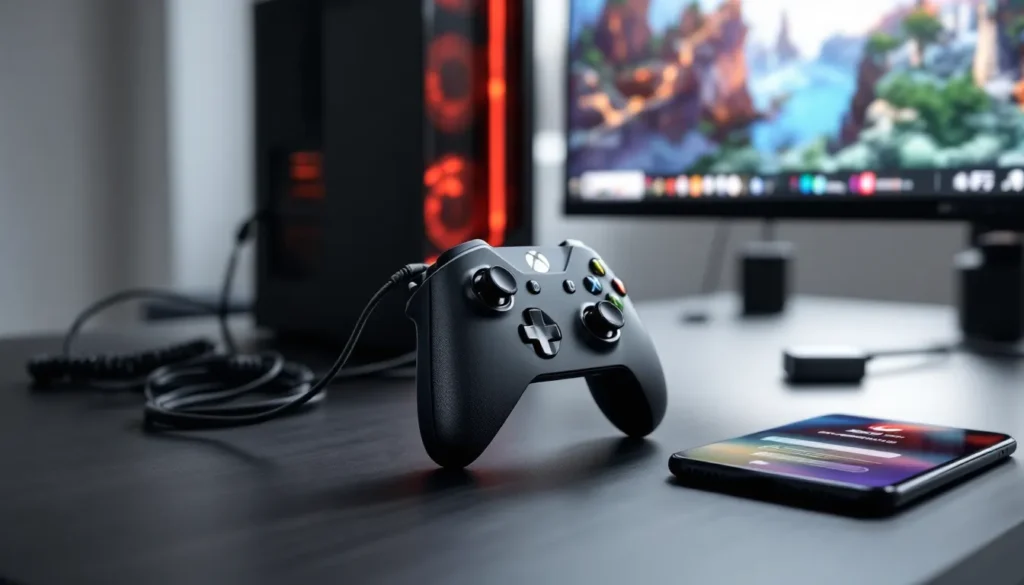
An Xbox One controller USB cable is a wired connection that links your controller to a console or PC, serving dual purposes: it charges the internal battery (if you’re using rechargeable battery packs) and transmits controller input data for gameplay. Unlike standard charging cables you might use for your phone, gaming cables need to handle consistent data transfer with minimal latency.
The cable essentially converts your wireless controller into a wired one while plugged in. This matters because wireless connections, even good ones, introduce some degree of input delay, measured in milliseconds, but noticeable to competitive players. A USB cable bypasses the wireless radio entirely, sending your button presses directly through a physical connection.
Three main scenarios make a USB cable essential: competitive gaming where every millisecond counts, extended play sessions where you don’t want battery anxiety, and PC gaming where initial setup or driver issues sometimes require a wired connection. Many PC gamers keep their controllers permanently wired because it eliminates pairing headaches and guarantees the controller works the moment you plug it in.
The cable itself is simple, a USB-A connector on one end (plugs into console or PC) and either micro-USB or USB-C on the other (plugs into controller). But that simplicity hides important differences in cable quality, data capability, and durability that separate a cable you’ll use for years from one that’ll fray in three months.
Types of USB Cables Compatible with Xbox One Controllers
Micro-USB Cables for Original Xbox One Controllers
Original Xbox One controllers, Xbox One S controllers, and Xbox One X controllers all use micro-USB ports. This was the standard connector when these controllers launched between 2013-2020. Micro-USB cables are everywhere, you probably have a few in your junk drawer from old phones or devices.
But, not all micro-USB cables support data transfer. Some cheaper cables only carry power for charging and won’t transmit gameplay data. These charge-only cables work fine if you’re just topping up a rechargeable battery pack, but they’re useless for wired gaming. Look for cables explicitly labeled as “data cables” or “sync cables.”
The micro-USB standard has a reputation for fragility. The small connector pins can bend or break with repeated plugging, and the port itself can loosen over time. Quality cables with reinforced connectors and strain relief (that thicker rubber bit where the cable meets the plug) last significantly longer.
USB-C Cables for Xbox Series Controllers
Xbox Series X
|
S controllers, released in November 2020, switched to USB-C connectors. This modern standard offers faster data transfer, higher power delivery, and, critically, a reversible connector that’s much harder to damage. You can’t plug it in upside-down, which alone prevents countless broken ports.
USB-C cables designed for gaming peripherals typically support USB 3.0 or higher, though the controller itself doesn’t require those speeds. The real benefit is build quality: USB-C cables tend to be more robust than their micro-USB predecessors. Major peripheral manufacturers now include braided cables and reinforced connectors as standard features.
One important note: Xbox Series controllers work with Xbox One consoles via USB-C cable, and Xbox One controllers work with Series X
|
S consoles via micro-USB. Microsoft maintained backward and forward compatibility across the entire Xbox One/Series ecosystem. You can also use Series controllers on PC, where the USB-C connection often provides better driver support in Windows 10 and 11.
Benefits of Using a Wired USB Connection vs Wireless
Zero Input Lag for Competitive Gaming
Wireless Xbox One controllers have roughly 4-8ms of input latency depending on environmental interference and distance from the console. Bluetooth connections to PC can push that to 10-15ms. A wired USB connection drops input lag to effectively zero, your inputs travel at the speed of electrical signals through copper, which is fast enough that human reaction time becomes the bottleneck, not the cable.
For casual gaming, you won’t notice 5ms. For competitive shooters, fighting games, or rhythm games, that delay is the difference between landing a headshot and watching the killcam in frustration. Pro players and high-ranked competitive gamers overwhelmingly prefer wired connections for this reason. If you’re playing tournaments or climbing ranked ladders in games like Halo Infinite, Apex Legends, or Street Fighter, a USB cable isn’t optional.
No Battery Management Required
Batteries die. Always at the worst time. Always when you don’t have spares. A wired connection eliminates this entirely. You never check battery levels, never pause mid-match to swap AAs, and never leave your controller on the charger overnight.
This benefit extends to controller lifespan, too. Rechargeable batteries degrade over hundreds of charge cycles. Standard AA batteries cost money and generate waste. A single quality USB cable outlasts dozens of battery sets and doesn’t lose capacity over time. For marathon gaming sessions, the 6-hour weekend grinds or streaming sessions that run until 3 AM, a wired connection means one less thing to worry about.
Reliable Connection for PC Gaming
PC gaming introduces variables that consoles don’t have: multiple Bluetooth devices competing for bandwidth, driver conflicts, Windows updates that break controller support, and USB ports that may or may not provide adequate power. A wired connection sidesteps most of these issues.
When you plug an Xbox controller into a Windows PC via USB, Windows automatically recognizes it and loads drivers without requiring manual setup. No pairing mode, no Bluetooth troubleshooting, no wondering why Steam suddenly can’t see your controller. This plug-and-play reliability makes wired connections the go-to recommendation for PC gamers who value their sanity.
Wired connections also support older PCs that lack Bluetooth adapters or have weak wireless receivers. If you’re gaming on a desktop tower tucked under a desk or in another room, a long USB cable provides stable connectivity that wireless can’t match across distance and through walls.
How to Choose the Best USB Cable for Your Xbox One Controller
Cable Length Considerations
Cable length is the first spec to nail down. Too short and you’re hunched over your console or desk like a goblin. Too long and you’ve got cable spaghetti tangling your setup.
Standard lengths and use cases:
- 6 feet (1.8m): Good for desk gaming on PC where the tower sits nearby. Tight, minimal cable management needed.
- 10 feet (3m): The sweet spot for couch gaming. Reaches from console to couch in most living room setups without excess slack.
- 15 feet (4.5m) or longer: For home theater setups, gaming from recliners, or when your console sits across the room. Essential for competitive players who refuse to sit close to the TV.
Consider your actual gaming position. Measure the distance from your controller position to your console or PC, then add 2-3 feet for movement and routing around furniture. Cable management clips or velcro ties keep excess length organized without permanent solutions.
Build Quality and Durability Features
A cheap cable will fail, usually by fraying near the connectors where stress concentrates during movement. Quality cables include several durability features worth paying for:
Braided nylon or fabric sleeves protect the internal wires from abrasion and prevent the outer insulation from cracking. They also resist tangling better than rubber-coated cables. Most premium gaming cables use braided construction as standard.
Reinforced strain relief at both connector ends prevents the classic failure mode where wires break inside the cable jacket. Look for thick, flexible rubber boots that transition gradually from connector to cable.
Gold-plated connectors resist corrosion and maintain better electrical contact over thousands of plug/unplug cycles. They’re common on data cables and worth having, though not as critical as structural reinforcement.
Ferrite cores (those small cylindrical bumps near connectors) reduce electromagnetic interference. They’re more important for audio cables but don’t hurt on controller cables, especially in setups with lots of wireless devices nearby.
Reviews on sites like PCMag consistently show that cables with these features last 3-5 times longer than basic options. The price difference is usually $5-10, which pays for itself when you’re not buying replacements every six months.
Data Transfer vs Charging-Only Cables
This is the most common mistake: buying a cable that only charges. Many inexpensive micro-USB and USB-C cables carry power but don’t have the data wires needed for controller input. These cables charge your controller but won’t let you play games while wired.
There’s no reliable way to identify charging-only cables by appearance. Packaging usually indicates “data cable,” “sync cable,” or lists data transfer speeds like “USB 2.0.” If a cable is suspiciously cheap (under $3-4) or marketed only for charging, assume it’s charging-only.
When in doubt, buy cables from gaming peripheral brands (PowerA, PDP, Microsoft) or established electronics brands that explicitly market controller compatibility. Generic Amazon Basics or Anker cables work fine if they specify data transfer support. The safest bet is buying cables explicitly sold as controller cables for Xbox gaming rather than generic phone chargers.
Setting Up Your Xbox One Controller with a USB Cable
Connecting to Xbox One and Series X
|
S Consoles
Connecting a controller to an Xbox console via USB cable is dead simple:
- Plug the USB-A end into any USB port on the console (front or back ports work identically)
- Plug the micro-USB or USB-C end into your controller
- The controller immediately powers on and connects
No button presses needed, no pairing mode, no sync process. The console recognizes the wired controller instantly. If your controller was previously paired wirelessly, the USB connection takes priority, it won’t use wireless while the cable is plugged in.
The controller continues working as a wired controller as long as the cable remains connected. If you’re using disposable batteries, they won’t drain during wired play. If you have a rechargeable battery pack installed, it charges while you play (assuming the cable supports charging, which most do).
One quirk: some users report that unplugging and replugging the cable during gameplay can cause brief input freezes (1-2 seconds). Not a problem during setup, but don’t mess with the cable mid-match.
Connecting to Windows PC
Windows 10 and 11 have native Xbox controller support built into the OS. Setup is equally straightforward:
- Plug the USB-A end into any USB port on your PC
- Plug the controller end into your Xbox One or Series controller
- Windows automatically detects the controller and installs drivers (first connection only, takes 10-30 seconds)
- A notification confirms “Xbox Controller connected”
You can verify the connection by opening Settings > Devices > Bluetooth & other devices and looking for “Xbox Wireless Controller” in the device list. To test inputs, search for “Set up USB game controllers” in the Windows search bar, select your controller, and click Properties to open the test window showing button presses and stick movement.
Most PC games automatically recognize Xbox controllers without additional configuration. Steam has built-in Xbox controller support. Epic Games Launcher, EA App, and most other platforms do too. Older games or emulators might require mapping buttons through software like DS4Windows or antimicro-x, but modern titles work plug-and-play.
If your PC doesn’t recognize the controller, try a different USB port, preferably one directly on the motherboard rather than a front-panel or hub connection. USB 3.0 (blue) ports sometimes have better compatibility than older USB 2.0 ports, though both should work.
Common USB Cable Issues and How to Fix Them
Controller Not Recognized by PC or Console
The most frustrating issue: you plug in the controller and nothing happens. No light, no vibration, no recognition.
First, verify cable functionality. Swap in a different cable if possible. If the controller immediately works with a different cable, your original cable is the problem (likely charging-only or damaged internally).
Check the USB port. Try different ports on your console or PC. Some USB hubs or front-panel ports provide inconsistent power. Ports directly on the motherboard or console chassis are most reliable.
Inspect the controller port. Shine a light into the micro-USB or USB-C port on the controller. Look for bent pins, debris, or lint packed inside. Compressed air can clear dust: a wooden toothpick (not metal.) can gently remove lint. Bent pins usually require professional repair unless you’re comfortable with very delicate soldering.
On PC, update or reinstall drivers. Open Device Manager, find the controller under “Human Interface Devices” or “Xbox Peripherals,” right-click and select “Update driver.” If that fails, uninstall the device, unplug the controller, restart Windows, then plug it back in to force fresh driver installation.
On Xbox consoles, update the controller firmware. Go to Settings > Devices & connections > Accessories, select your controller, and check for updates. Outdated firmware occasionally causes USB connection issues, particularly after console system updates.
Intermittent Connection or Disconnections
Your controller connects, then randomly disconnects mid-game, reconnects, disconnects again, a maddening cycle.
Cable strain at connectors is the usual culprit. Gently wiggle the cable at both ends while watching for disconnection. If wiggling triggers drops, the cable is damaged internally near the connector. Replace it.
USB port power issues can cause drops. This is more common on PC, especially with many devices plugged in. Try a powered USB hub or a port on a different USB controller. On PC, disable USB selective suspend: Control Panel > Power Options > Change plan settings > Change advanced power settings > USB settings > USB selective suspend setting > Disabled.
Ferrite core interference sometimes helps. If you don’t have a cable with built-in ferrite cores, you can buy clip-on ferrite beads from electronics stores. Attach them near both cable ends to reduce electromagnetic interference that can cause instability.
Cable Charging but Not Transmitting Data
The controller’s light turns on (indicating it’s receiving power), but inputs don’t register. The console or PC doesn’t recognize it as a connected controller.
This almost always means you have a charging-only cable. These cables have the power wires but lack the data lines required for communication. Solution: buy a proper data/sync cable.
Rarely, USB 3.0 compatibility issues cause similar symptoms on PC. USB 3.0 ports (blue or teal colored) sometimes conflict with older USB 2.0 devices. According to hardware reviews on Digital Trends, forcing USB 2.0 mode in BIOS or using a USB 2.0 port can resolve this. Most modern systems handle this automatically, but it’s worth trying if you’ve ruled out cable quality.
Top USB Cables for Xbox One Controllers in 2026
Best Overall Performance Cables
For gamers who want peak reliability and durability without compromise:
Microsoft Official Play & Charge Kit Cable – The first-party option included with Microsoft’s Play & Charge Kit. Micro-USB, 9-foot length, high-quality construction with reinforced connectors. Pricier than third-party options but guaranteed compatibility and build quality. Available separately if you lose the original.
PowerA USB-C Controller Cable for Xbox Series – 10-foot braided cable with reinforced stress points, specifically designed for Xbox Series controllers. PowerA is a licensed Microsoft partner, so compatibility is never questionable. Excellent balance of length, durability, and price.
Anker Powerline+ II USB-C to USB-A – Not gaming-specific but popular among Xbox players for its bulletproof construction. Kevlar-reinforced, double-braided nylon, gold-plated connectors, and a lifetime warranty. Available in 3-foot, 6-foot, and 10-foot lengths. Works perfectly for data transfer and charging.
Best Budget-Friendly Options
Quality cables that won’t drain your gaming budget:
Amazon Basics USB-C Cable (6-foot) – Simple, functional, and surprisingly durable for the price ($6-8). Not braided, but has basic strain relief and supports data transfer. Perfect for desk gaming where the cable doesn’t move much.
Cable Matters USB 2.0 Micro-USB Cable (10-foot) – Around $7-9, available in multiple lengths. Includes ferrite cores and decent connector reinforcement. Works for both charging and data, explicitly compatible with Xbox controllers.
JSAUX USB-C Cable (10-foot, 2-pack) – Usually $10-12 for two cables. Braided nylon construction, aluminum connectors, and reliable data transfer. Having a backup cable at this price point is smart.
Best Extra-Long Cables for Couch Gaming
When you need serious reach for living room setups:
CableCreation 16-Foot USB Extension Cable – Technically not a controller cable but a USB-A male to female extender. Pair it with any quality 6-foot controller cable to get 22 feet total reach. Active signal boosting ensures no data loss over the extended distance.
Orzly 15-Foot Micro-USB Cable for Xbox One – Purpose-built for couch gaming with Xbox One controllers. Braided construction, reinforced connectors, and proven compatibility. The extra length eliminates any distance anxiety.
UGREEN USB-C Cable (20-foot) – The longest common length for USB-C controller cables. Active chipset maintains signal integrity over the full length. Slightly thicker cable to accommodate the extra distance but still flexible enough to route around furniture.
When shopping, prioritize cables with:
- Explicit Xbox controller compatibility in the description
- At least 500+ reviews with 4+ star average
- Braided or reinforced construction
- Clear indication of data transfer support
- Return-friendly sellers (Amazon, Best Buy) in case compatibility issues arise
Maintaining Your USB Cable for Long-Term Use
A quality USB cable can last years with minimal care. Most failures happen because of physical stress, not electrical wear.
Avoid sharp bends near connectors. The most common failure point is where the cable meets the plug. Don’t wrap cables tightly around controllers for storage. Use loose loops secured with velcro straps instead of tight coils that stress the internal wires.
Route cables to minimize tripping hazards and tugs. Cable clips or adhesive guides along furniture edges keep cables out of foot traffic. A controller yanked off a table by a caught cable puts huge stress on both the cable and the controller port. If you game with kids or pets, cable management isn’t optional.
Unplug by the connector, not the cable. Grab the hard plastic connector housing when disconnecting, not the cable itself. Pulling on the cable transfers force to the internal wire joints, causing early failure.
Store cables loosely. When not in use, drape cables over a hook or in a drawer with gentle curves. Avoid cramming them into tight spaces that force sharp angles.
Clean ports periodically. Every few months, use compressed air to blow dust out of both the controller port and USB ports on your console/PC. Dust accumulation can prevent proper contact and cause intermittent connections.
Inspect cables every few months. Look for fraying near connectors, exposed wires, or damaged insulation. Catching problems early means replacing the cable before it fails mid-session. If you spot damage, replace immediately, a failing cable can potentially damage the controller port.
Keep a spare cable in your gaming setup. A backup 10-foot cable costs $8-12 and saves you from emergency Amazon orders when your primary cable dies right before a gaming session. Think of it like keeping spare HDMI cables, cheap insurance against downtime.
Conclusion
USB cables might not be the most exciting gaming gear, but they’re one of the most practical upgrades any Xbox player can make. Whether you’re eliminating input lag for competitive play, ending battery anxiety during marathon sessions, or just simplifying your PC gaming setup, the right cable makes a tangible difference.
The key takeaways: match your cable type to your controller (micro-USB for Xbox One, USB-C for Series), prioritize build quality over price, verify data transfer capability, and choose appropriate length for your gaming space. A well-chosen cable from the options covered here will outlast multiple controller generations.
Now plug in, load up, and enjoy gaming without wireless dropouts or low battery warnings interrupting your flow.