Your character in Minecraft Java Edition is more than just a pixelated avatar, it’s your identity across countless servers, builds, and adventures. While the default Steve and Alex skins get the job done, most players swap them out within their first few hours of gameplay. Whether you’re rolling into a PvP server as a menacing Enderman variant, showing off a custom-designed skin on your survival server, or coordinating matching skins with your squad, customization is a core part of the Minecraft experience.
This guide covers everything you need to know about Minecraft Java skins in 2026: what they are, where to find them, how to install and create them, and how to troubleshoot when things go sideways. We’ll also jump into the technical differences between Java and Bedrock skins, current trends in the community, and advanced techniques for players who want total control over their appearance.
Table of Contents
ToggleKey Takeaways
- Minecraft Java skins are free, infinitely customizable 64×64 PNG texture files that define your character’s appearance across all multiplayer servers and worlds.
- Download skins safely from established databases like NameMC, The Skindex, and Planet Minecraft—always avoid .exe files and verify file sizes are under 20 KB to prevent malware.
- Use editors like Blockbench or NovaSkin to create custom Minecraft Java skins, leveraging base and overlay layers to add depth with hats, armor, and accessories.
- Upload your skin once via the Minecraft Launcher or minecraft.net, and it automatically syncs across all Java Edition multiplayer servers tied to your Microsoft account.
- Popular Minecraft Java skin trends in 2026 include anime and gaming character adaptations, realistic shaded designs within 64×64 limits, and intentionally surreal ‘cursed’ skins for community appeal.
- Troubleshoot missing skins by confirming upload success on your profile, restarting the game client, and checking internet connectivity—Mojang’s CDN may take 5–10 minutes to propagate changes.
What Are Minecraft Java Edition Skins?
A Minecraft Java Edition skin is a texture file that wraps around your character model, determining how you appear to yourself and other players. Unlike cosmetics in many modern games that require purchases or loot boxes, Minecraft Java skins are completely free and infinitely customizable.
The skin system uses a 64×64 pixel PNG image that maps onto a 3D character model. The file is divided into regions corresponding to body parts: head, torso, arms, and legs. Each region can have a base layer and an overlay layer, allowing for accessories like hats, sleeves, or additional details that extend slightly beyond the character’s body.
Skins don’t affect gameplay mechanics, no hitbox changes, speed boosts, or stat modifications. They’re purely cosmetic. But in a game built on creativity and self-expression, that cosmetic layer matters. Your skin is how you present yourself in multiplayer lobbies, on YouTube videos, and in screenshots shared with the community.
Minecraft Java Edition supports both classic skins (the original 64×32 format with limited overlay options) and modern skins (64×64 with full overlay support for all body parts). As of 2026, the vast majority of players use the modern format, though the launcher still accepts classic skins for backward compatibility.
How Minecraft Java Skins Differ from Bedrock Skins
Skin File Format and Technical Specifications
Minecraft Java Edition and Bedrock Edition handle skins differently under the hood, which causes compatibility headaches for players who switch between platforms.
Java Edition uses simple PNG files with a 64×64 pixel resolution. You can edit these in any image editor, upload them directly to your Minecraft profile via the launcher or website, and they’ll work immediately. The format is open, no proprietary encoding, no restrictions. Java skins support two model types: Steve (4-pixel-wide arms) and Alex (3-pixel-wide arms). When uploading, you specify which model your skin is designed for.
Bedrock Edition (PC, Xbox, PlayStation, Switch, Mobile) uses a more restrictive system. While Bedrock accepts 64×64 PNG files for custom skins, it also supports purchasable skins from the Marketplace with higher resolutions and additional features like animated textures or geometry modifications. Bedrock skins are tied to your Microsoft account but managed differently depending on the platform, console players often can’t upload custom files at all and must use in-game options or Marketplace purchases.
The pixel-perfect mapping is also slightly different. A skin designed for Java might look fine on Bedrock, but transparency handling and overlay rendering can behave inconsistently.
Cross-Platform Compatibility Considerations
If you play on both Java and Bedrock, you’ll need to upload your skin separately to each version. There’s no automatic sync.
For Java to Bedrock conversion, most skins work without modification as long as they’re standard 64×64 files. But, some community skins designed specifically for Java might have transparency effects or overlay tricks that don’t render correctly on Bedrock. Testing on both platforms is the only reliable way to confirm compatibility.
Bedrock Marketplace skins (the paid, high-res ones with custom geometry) cannot be used on Java Edition at all. They’re built with features the Java engine doesn’t support.
If you’re designing a skin you plan to use across both versions, stick to the standard 64×64 format, avoid edge-case transparency effects, and test in both clients before committing. Most major skin databases and tools now flag compatibility issues during upload, which helps catch problems early.
Where to Find and Download Minecraft Java Skins
Top Skin Databases and Community Sites
The Minecraft community has built a massive ecosystem of free skin repositories. Here are the most reliable and popular sources as of 2026:
-
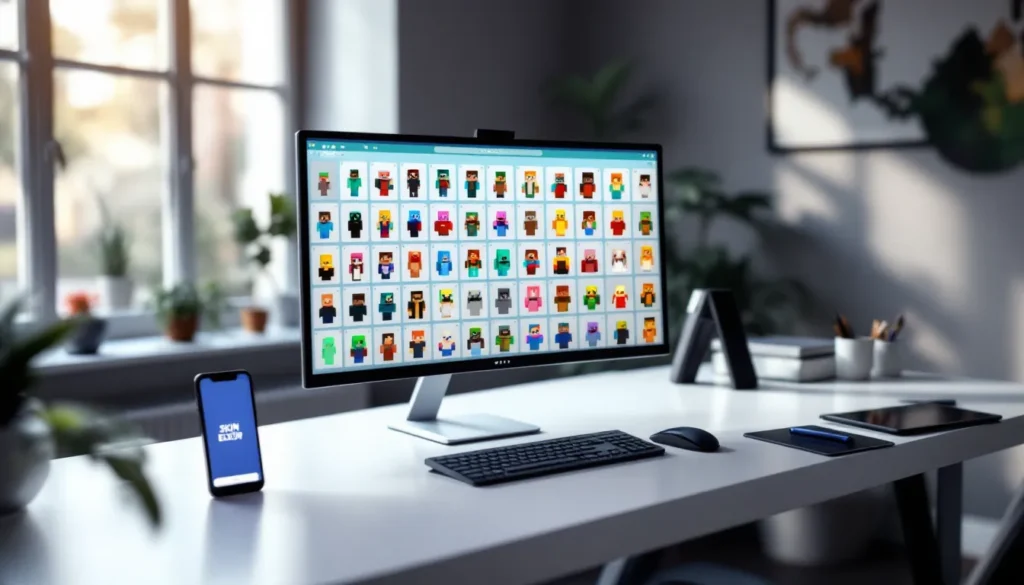
NameMC – The go-to database for most players. NameMC indexes millions of skins, lets you search by tag or keyword, and shows real-time previews with 3D rotation. You can also browse skins by popularity or recent uploads. The site pulls data directly from Mojang’s servers, so you can see what skin any player is currently using by searching their username.
-
The Skindex – One of the oldest skin sites, still actively maintained. Offers a robust search system, user ratings, and a built-in editor. The community is active, and you’ll find everything from anime characters to original designs.
-
Planet Minecraft – Known for its broader Minecraft content (maps, mods, texture packs), Planet Minecraft also hosts a huge skin library. The curation is strong here, high-quality skins tend to rise to the top, and the comment sections often include feedback and variant suggestions.
-
MinecraftSkins.com – A straightforward, no-frills database. The search is fast, the selection is large, and the site loads quickly even on slower connections. Good for quick browsing.
-
Reddit (r/minecraftskins) – For original designs and community feedback, Reddit’s Minecraft skins subreddit is invaluable. Creators post their work, take requests, and share templates.
Most of these sites let you download skins as PNG files with a single click. Some also offer direct integration with the Minecraft launcher, though manually downloading and uploading is usually just as fast.
Safety Tips for Downloading Skins
Skin files are just PNG images, so they’re inherently low-risk compared to mods or executables. But a few precautions keep you safe:
-
Stick to established sites. The databases listed above have been around for years and are vetted by the community. Random blogs or sketchy ad-filled pages are more likely to bundle malware or redirect you to phishing sites.
-
Never download .exe or .zip files for skins. A legitimate Minecraft Java skin is always a single PNG file, typically under 10 KB. If a site asks you to download an executable or extract a compressed archive for a skin, it’s a scam.
-
Check file size. A 64×64 PNG skin should be between 1 KB and 20 KB. If the file is several megabytes, something’s wrong.
-
Preview before downloading. Most reputable sites show a 3D preview of the skin. If the preview looks broken, corrupted, or wildly different from the thumbnail, skip it.
-
Use an ad blocker. Many skin sites are ad-supported. An ad blocker reduces the risk of clicking a misleading ad disguised as a download button.
How to Install Skins in Minecraft Java Edition
Installing Skins Through the Minecraft Launcher
The Minecraft Launcher (version 2.x, standard as of 2026) makes skin changes simple.
- Open the Minecraft Launcher and make sure you’re logged into your Microsoft account.
- Click on the “Skins” tab at the top of the launcher window.
- Select “New Skin” or click on your current skin to edit it.
- Choose your model type: Steve (classic, wider arms) or Alex (slim arms). This should match the design of your skin file.
- Click “Browse” and navigate to the PNG file you downloaded.
- Confirm and save. The launcher will upload the skin to Mojang’s servers. This usually takes a few seconds.
Once uploaded, your new skin is live. Launch the game and it’ll appear immediately in singleplayer. For multiplayer servers, there may be a brief delay (usually under a minute) as the server fetches your updated skin from Mojang’s CDN.
Uploading Custom Skins to Your Minecraft Profile
If you prefer not to use the launcher, you can upload skins directly via the Minecraft website.
- Go to minecraft.net/profile and log in with your Microsoft account.
- Scroll to the “Change Skin” section.
- Upload your PNG file and select the appropriate model (Steve or Alex).
- Save changes. The update propagates to all Java Edition clients tied to your account.
This method is handy if you’re managing skins from a browser or working on a device where the launcher isn’t installed. The result is identical to uploading via the launcher.
Either way, remember that Minecraft Java Edition ties skins to your Microsoft account, not to individual installations. Change your skin once, and it updates everywhere you play.
Creating Your Own Custom Minecraft Java Skin
Best Skin Editors and Design Tools
If you want full creative control, making your own skin from scratch is the way to go. Several editors cater to different skill levels:
-
Blockbench – Originally a 3D modeling tool for Minecraft mobs and blocks, Blockbench includes a powerful skin editor. It’s free, open-source, and available as a desktop app or web app. The 3D preview updates in real-time as you paint, making it easy to see how changes look from all angles.
-
NovaSkin – A browser-based editor with a clean interface. NovaSkin supports layers, basic drawing tools, and an extensive library of pre-made parts you can mix and match. It’s great for beginners who want to customize an existing skin or build one from templates.
-
Miners Need Cool Shoes (MNCoolShoes) – Another web-based tool, a bit more old-school in design but reliable. Offers a 3D preview, palette tools, and export options.
-
Photoshop / GIMP / Krita – If you’re comfortable with traditional image editors, you can design skins in any software that handles PNG files. Just download a blank skin template (available on most skin sites), paint over it, and make sure you preserve the 64×64 resolution and transparency layers. This method offers maximum control but requires more manual work to visualize how the flat texture maps onto the 3D model.
For quick edits or remixes, NameMC’s built-in editor is surprisingly capable. You can adjust colors, swap parts, and preview changes without leaving your browser.
Tips for Designing a Unique Skin
Creating a standout skin takes practice, but a few principles help:
Start with a concept. Decide on a theme or character before you open the editor. Random experimentation usually leads to messy, unfocused designs. Are you going for a fantasy knight, a cyberpunk hacker, a specific anime character, or an original OC? Lock that in first.
Use reference images. If you’re adapting an existing character, keep reference art open while you work. Minecraft’s low resolution means you’ll need to simplify details, but referencing colors and proportions keeps the design recognizable.
Limit your color palette. Skins with 5-8 main colors tend to look cleaner than those with 20+ shades. Pixel art thrives on intentional color choices and strong contrast.
Pay attention to symmetry, or intentional asymmetry. Most skins are symmetrical (left and right sides mirror each other), which looks polished. If you go asymmetrical, make sure it’s deliberate, like a character with a robotic arm or a torn cape.
Test in 3D frequently. What looks good on the flat template might look weird on the model. Rotate your preview constantly and adjust pixels that don’t line up the way you expect.
Don’t overuse overlays. The overlay layer is great for adding depth (hoods, armor plates, accessories), but stacking too many translucent pixels can make your skin look cluttered or glitchy, especially on lower-end clients.
Understanding Skin Layers and Overlays
Minecraft Java skins have two layers per body part: a base layer and an overlay layer.
The base layer is the core texture, your character’s “skin” in the literal sense. This is always opaque (no transparency).
The overlay layer sits on top and supports transparency. This is where you add hats, hair that extends past the head, jacket sleeves, or armor details. The overlay pixels render slightly outside the character model, creating a sense of depth.
When designing, most editors show both layers simultaneously. In the PNG file, the base layer occupies the left half (or specific UV-mapped regions), and the overlay occupies corresponding sections on the right half.
Common overlay uses:
- Headwear – Hats, helmets, hoods, or hair that extends beyond the head cube.
- Clothing details – Jacket sleeves, capes, or armor plates.
- Accessories – Glasses, masks, scarves.
You can toggle overlays on or off in-game via the Options > Skin Customization menu, which is useful for players who prefer a cleaner look or need better visibility in first-person mode.
Popular Minecraft Java Skin Styles and Trends in 2026
Anime and Gaming Character Skins
Anime-inspired skins remain one of the most popular categories. Characters from Attack on Titan, Demon Slayer, My Hero Academia, and newer series dominate the top downloads on most skin sites. Gaming crossovers are huge too, skins based on Genshin Impact, Valorant, League of Legends, and Elden Ring characters flood community galleries.
The appeal is obvious: players love representing their favorite characters in Minecraft’s blocky world. These skins range from faithful recreations to stylized interpretations that lean into Minecraft’s aesthetic.
Realistic and HD Skins
“Realistic” might be a stretch given Minecraft’s resolution limits, but the trend toward detailed, shaded skins continues. These skins use subtle gradients, carefully placed shadows, and intricate textures to create a sense of depth and realism within the 64×64 constraint.
HD skins technically aren’t supported in vanilla Java Edition, the engine caps skins at 64×64, but some modded servers and clients allow higher-resolution textures. On vanilla servers, though, players push the boundaries of what’s possible at standard resolution. Semi-realistic human faces, detailed armor, and fabric textures are common in this style.
Meme and Pop Culture Skins
Meme skins are a Minecraft staple. Whether it’s a Shrek skin, a poorly drawn Spongebob, or the latest viral internet character, meme skins thrive on humor and recognizability. They’re especially popular on casual and anarchy servers where players lean into absurdity.
Pop culture skins extend beyond anime and gaming into movies, TV shows, and internet personalities. Marvel and DC superhero skins, Star Wars characters, and skins based on streamers or YouTubers all see heavy rotation.
In 2026, there’s also a growing trend of “cursed” or intentionally ugly skins, designs that subvert expectations with unsettling faces, glitchy textures, or surreal aesthetics. These skins gained traction thanks to content creators showcasing them in videos, and they’ve become a niche favorite for players who want to stand out in a crowded server lobby.
Many players also turn to modding communities like Nexus Mods for inspiration, where texture artists share techniques and resources that influence skin design trends.
How to Change Skins for Multiplayer Servers
When you change your skin via the Minecraft launcher or website, it updates globally across all multiplayer servers, assuming those servers are set to online mode and authenticate with Mojang’s servers.
Here’s how the process works:
- Upload your new skin using the launcher or minecraft.net.
- Join a multiplayer server. When you connect, the server queries Mojang’s API to fetch your current skin.
- Your skin appears immediately (or within a few seconds) to other players.
If you change your skin while already connected to a server, you’ll need to disconnect and rejoin for the update to take effect. Other players’ clients cache your old skin temporarily, so they won’t see the change until you reconnect or they reload their game.
Some servers have custom skin systems that override your Mojang-linked skin with server-specific cosmetics, especially on modded or heavily customized servers. In these cases, your uploaded skin might not display, or it might only show in specific areas like a lobby.
Offline mode servers (often cracked or pirate servers) don’t authenticate with Mojang, so they can’t fetch your uploaded skin. On these servers, you’re usually stuck with the default Steve or Alex skin unless the server has a custom skin plugin that lets you upload files directly to their system.
For official, online-mode servers, the vast majority of Java Edition multiplayer, your Mojang account skin is all you need. Change it once, and it follows you everywhere.
Troubleshooting Common Skin Issues
Skin Not Showing Up in Game
If your skin isn’t displaying correctly, here’s the checklist:
1. Confirm the upload succeeded. Go to minecraft.net/profile and verify that the skin preview shows your new design. If it still shows the old skin or Steve/Alex, the upload didn’t go through. Try uploading again.
2. Restart your game. The Minecraft client caches skin data. If you changed your skin while the game was running, close and relaunch to force a refresh.
3. Check your internet connection. Skins are fetched from Mojang’s servers in real-time. If you’re offline or experiencing connectivity issues, skins won’t load.
4. Verify your Microsoft account status. If there’s an issue with your account authentication (expired session, suspended account), skins won’t sync. Log out and back in via the launcher.
5. Wait a few minutes. Mojang’s CDN sometimes lags, especially during peak hours or after a large-scale service update. Give it 5-10 minutes and reconnect to the server.
6. Server-side issues. If your skin displays in singleplayer but not on a specific server, the server might be caching old data or running in offline mode. Contact the server admin if the problem persists.
Fixing Transparency and Layer Problems
Transparency glitches are usually caused by incorrect alpha channel settings in the PNG file.
Issue: Black boxes or opaque areas where there should be transparency.
This happens when the alpha channel isn’t properly set. Open your skin file in an image editor like GIMP or Photoshop and check the layer transparency. Make sure fully transparent pixels have an alpha value of 0. Some editors default to a white or black background instead of true transparency, which causes this issue.
Issue: Overlays not rendering or appearing glitchy.
Double-check that the overlay regions in your skin file are correctly mapped. The 64×64 template has specific UV coordinates for base and overlay layers. If you’ve painted in the wrong region, the overlay won’t display. Many editors include visual guides or templates that highlight overlay zones, use them.
Issue: Skin looks fine in the editor but broken in-game.
Confirm your PNG file is saved at exactly 64×64 pixels. Minecraft won’t accept other resolutions for standard skins. Also, ensure the file is saved as RGB or RGBA (not indexed color or grayscale), as some obscure color modes cause rendering issues.
If you’re still stuck, download a known-good skin from a major site, examine its file properties, and compare them to your custom skin. That usually reveals the problem.
Players dealing with recurring issues often consult community resources, including detailed troubleshooting guides published by gaming sites.
Advanced Skin Customization Techniques
Once you’re comfortable with basic skin creation, a few advanced techniques can elevate your designs.
Shading and gradients – Instead of flat colors, use 2-3 shades per color to create depth. Place darker shades on the sides and bottom edges of body parts, lighter shades on top and center. This mimics how light would hit a 3D object and makes your skin pop.
Pixel dithering – Alternating pixels of two colors creates the illusion of a third, blended color. This old-school pixel art technique is useful for smooth transitions (like skin tones or fabric textures) within Minecraft’s limited resolution.
Subpixel detailing – Strategic placement of single contrasting pixels can define edges, add highlights, or create texture (like fabric weave or armor scratches). Don’t overdo it, too much noise makes the skin look messy, but a few well-placed pixels add a lot of personality.
Animation tricks (for content creators) – While vanilla Java Edition doesn’t support animated skins, some mods (like OptiFine with custom entity models) allow frame-by-frame animation. Content creators also use rapid skin-swapping scripts to create the illusion of animation in videos. This is niche but effective for cinematic projects.
HD texture overlays (modded clients) – Mods like OptiFine support player skins with resolutions higher than 64×64 (e.g., 128×128 or 256×256). These only display for players running the same mod, so they’re mainly useful for private servers or content creation. The design process is similar, just with more pixels to work with.
Collaborative skins – Some players create matching or complementary skins for group play. Think coordinated squad skins (matching uniforms, color schemes, or themed characters) for faction servers or YouTube series. This requires planning and often a shared design document or template.
Layer masking – In advanced editors like Blockbench or Photoshop, you can use layer masks to non-destructively test variations. Mask out parts of the overlay layer, try different accessories, and easily revert changes without starting over.
These techniques are overkill for casual players but invaluable if you’re designing skins for commissions, content creation, or just pushing your own skills.
Conclusion
Minecraft Java Edition’s skin system is one of the game’s most enduring features, simple enough for anyone to use, deep enough for serious customization. Whether you’re downloading a popular anime character, designing a one-of-a-kind OC, or troubleshooting why your overlay layer looks like a glitchy mess, the tools and community resources are better than ever in 2026.
Skins are free, infinitely customizable, and tied directly to your identity in the game. With the databases, editors, and techniques covered in this guide, you’ve got everything you need to make your Minecraft character truly yours. Now go find (or create) a skin that fits, upload it, and jump into your next build or PvP match looking exactly how you want to.