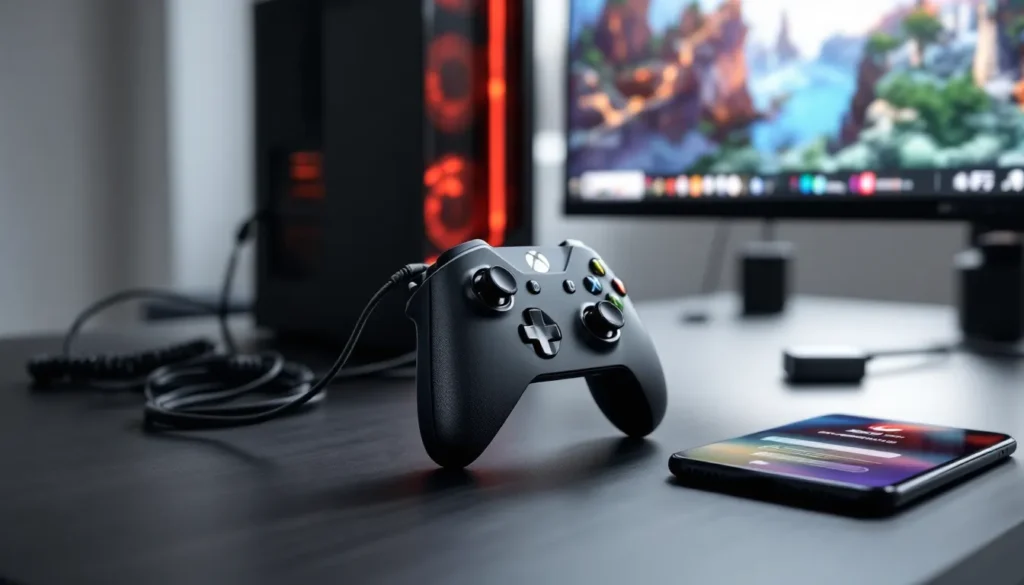
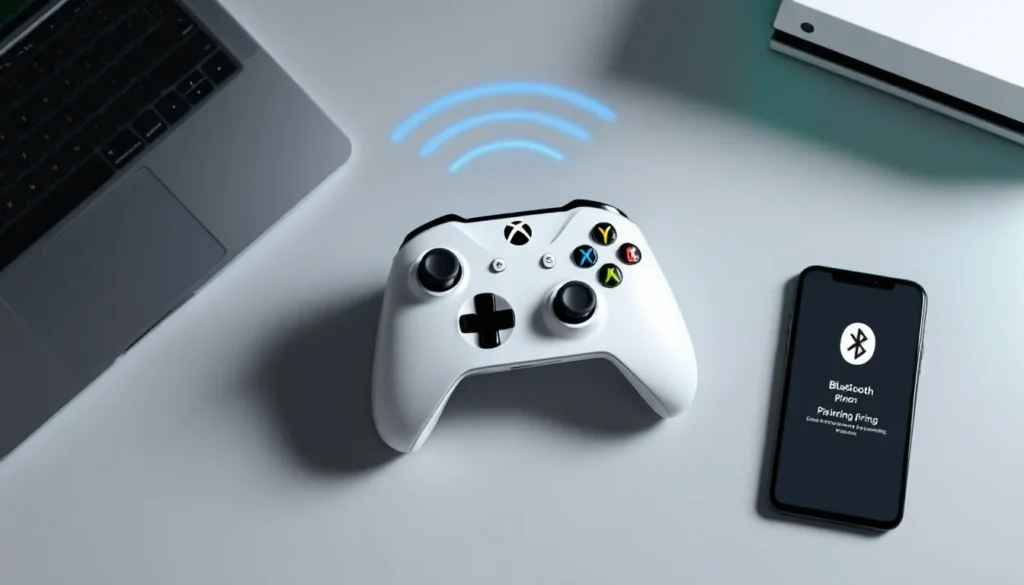
Your Xbox One controller is one of the most versatile gamepads ever made. Whether you’re grinding through a campaign on your console, dominating lobbies on PC, or running cloud gaming sessions from your phone, knowing how to pair it properly makes all the difference. Wireless hiccups, Bluetooth headaches, and mysterious connection drops can kill a gaming session faster than a surprise boss fight.
This guide walks through every pairing method across every platform, Xbox consoles, Windows PCs, Macs, iPhones, and Android devices. No fluff, no guessing. Just step-by-step instructions that actually work, plus troubleshooting fixes for the most common issues players run into in 2026.
Table of Contents
ToggleKey Takeaways
- Knowing how to pair your Xbox One controller properly across Xbox consoles, Windows PCs, Macs, iPhones, and Android devices eliminates wireless hiccups and connection drops.
- Xbox Wireless connections deliver lower latency (under 10ms) compared to Bluetooth (20-40ms), making them ideal for competitive gaming, while wired connections achieve imperceptible input lag under 5ms.
- Pre-2016 Xbox controllers lack Bluetooth entirely and only support Xbox Wireless or USB connections, so check the plastic surrounding the Xbox button to confirm Bluetooth capability.
- Controller firmware updates fix bugs and improve connectivity but require an Xbox console or Windows PC to install—mobile and Mac devices cannot update firmware over Bluetooth.
- Low batteries cause more pairing problems than any other factor; keep fresh AA batteries or a charged rechargeable pack on hand and refresh them before troubleshooting connection issues.
- Interference from routers, microwaves, and other 2.4GHz devices causes lag spikes and disconnects—move closer to your device within 3-5 feet and minimize background Bluetooth connections for stable pairing.
Understanding Xbox One Controller Compatibility
Which Devices Support Xbox One Controllers
Xbox One controllers have become the gold standard for compatibility. They work natively with Xbox One consoles (original, S, and X models), **Xbox Series X
|
S**, and Windows PCs running Windows 10 or later. Microsoft’s partnership with Apple brought official support to iOS 13+ and iPadOS 13+, while Android picked up support starting with Android 9.0 Pie.
Mac users got native controller support with macOS Catalina (10.15) and later. Steam Deck recognizes Xbox controllers instantly, and most cloud gaming services, including Xbox Cloud Gaming, GeForce Now, and Amazon Luna, treat them as first-class citizens. Even some smart TVs with gaming apps now detect Xbox controllers via Bluetooth.
Not all Xbox One controllers are created equal, though. Models manufactured before 2016 lack Bluetooth entirely, they only support Xbox Wireless protocol or USB connections. Check for the plastic surrounding the Xbox button: if it’s part of the front faceplate (not a separate piece), you’ve got Bluetooth. This matters when pairing to non-Microsoft devices.
Wired vs. Wireless Connection: Which Should You Use?
Wired connections eliminate input lag entirely. USB provides power and data simultaneously, so battery life becomes irrelevant. Competitive players, especially in fighting games or shooters where frame-perfect inputs matter, often prefer wired for the consistency. It’s also the most reliable troubleshooting step when wireless acts up.
Wireless connections offer freedom of movement and cleaner setups. Xbox Wireless (the proprietary 2.4GHz protocol) delivers lower latency than Bluetooth, typically under 10ms compared to Bluetooth’s 20-40ms. That said, Bluetooth’s convenience for mobile devices and non-Microsoft hardware makes it the go-to for casual play.
Battery management becomes a factor with wireless. Standard AA batteries last 30-40 hours, while rechargeable battery packs offer convenience at the cost of upfront investment. Some players keep a USB cable handy to swap to wired mid-session when batteries die.
How to Pair Your Xbox One Controller to Xbox Console
Pairing Wirelessly to Xbox One and Xbox Series X
|
S
Pairing to an Xbox console is the simplest process Microsoft designed. Power on the console first, then press the Xbox button on the controller to wake it. If it’s a brand-new controller or previously paired to another device, it won’t connect automatically.
Look for the pairing button on the console, it’s near the USB ports on Xbox One (front panel on One S/X, left side on original) and on the front of Series X
|
S next to the USB port. On the controller, the pairing button sits on top near the LB button.
Press and hold the console’s pairing button until the light starts flashing. Within three seconds, press and hold the controller’s pairing button. The Xbox button will flash rapidly, then stay solid white when pairing succeeds. The entire process takes under 10 seconds.
Xbox consoles remember up to eight controllers simultaneously, though only four can be active in most games. If you’re hitting the limit, the console might reject new pairings, unpair old controllers through Settings > Devices & connections > Accessories.
Using a USB Cable for Wired Connection
Plug any micro-USB cable (for original Xbox One controllers) or USB-C cable (for newer Xbox Series controllers) into the port at the top of the gamepad. Connect the other end to any USB port on your Xbox console. The controller pairs and powers on instantly, no button presses required.
Wired connections override wireless pairing. Even if the controller was previously paired wirelessly, plugging it in switches to wired mode. This makes it perfect for diagnosing wireless issues or when you need guaranteed zero-latency input for competitive play.
Not all USB cables support data transfer. Charging-only cables won’t work, if the controller doesn’t respond when plugged in, try a different cable. The ones that ship with Play and Charge kits are always data-capable.
How to Pair Xbox One Controller to Windows PC
Pairing via Bluetooth on Windows 10 and 11
Windows 10 and 11 handle Xbox controller Bluetooth pairing through the standard system settings. First, confirm your controller has Bluetooth, remember, pre-2016 models don’t. Press the Xbox button to power on the controller, then hold the pairing button on top until the Xbox button starts rapid flashing.
On your PC, open Settings > Devices > Bluetooth & other devices (Windows 10) or Settings > Bluetooth & devices (Windows 11). Click Add device, then Bluetooth. After a few seconds, Xbox Wireless Controller appears in the list. Click it, and Windows handles the rest.
The Xbox button glows solid white once connected. Windows remembers the pairing, so future connections usually happen automatically when you press the Xbox button, though connection stability issues sometimes require re-pairing.
Bluetooth latency on PC sits around 20-40ms, fine for most games but noticeable in rhythm games or competitive shooters. If input lag bothers you, consider Xbox Wireless or a wired connection instead.
Connecting with Xbox Wireless Adapter
The Xbox Wireless Adapter for Windows delivers the same low-latency 2.4GHz connection consoles use. It’s a small USB dongle (about the size of a flash drive) that plugs into any USB-A or USB-C port (depending on the version). Windows 10 and 11 install drivers automatically, no software needed.
Plug in the adapter and wait for Windows to recognize it (usually under 10 seconds). Press the pairing button on the adapter, it’s a small circular button on the side. The LED starts flashing. Press and hold the controller’s pairing button until the Xbox button flashes, then wait for solid white.
One adapter supports up to eight controllers simultaneously, plus four chat headsets. This makes it ideal for local multiplayer on PC. Latency matches Xbox consoles, under 10ms, which competitive players notice immediately compared to Bluetooth.
The adapter works with both Xbox One and Xbox Series controllers. Microsoft discontinued the original adapter in 2020: the current version includes a USB-C dongle for newer PCs and a USB-A adapter for legacy systems.
Setting Up a Wired Connection to PC
Wired PC connection works identically to console. Plug a micro-USB or USB-C cable (depending on controller model) into the controller and any USB port on your PC. Windows 10 and 11 recognize it instantly and install Xbox controller drivers automatically.
No pairing process exists for wired, it’s truly plug-and-play. The controller shows up in Device Manager under Xbox Peripherals and works immediately in any game with controller support. Steam, Epic Games Launcher, Xbox app, and Game Pass all detect it without configuration.
Wired connections on PC are particularly useful for players who optimize console performance and want that same reliability on PC. Input lag measures under 5ms, imperceptible even to esports-level players.
How to Connect Xbox One Controller to Mobile Devices
Pairing to iPhone and iPad
iOS 13 and later brought native Xbox One controller support to iPhone and iPad. Power on the controller with the Xbox button, then press and hold the pairing button until rapid flashing begins. On your iPhone or iPad, open Settings > Bluetooth and ensure Bluetooth is enabled.
Under Other Devices, Xbox Wireless Controller appears within a few seconds. Tap it. The device shows Connected once pairing completes, and the Xbox button glows solid white. iOS remembers the pairing, future connections happen automatically when you turn on the controller near your device.
iOS handles button mapping automatically for supported games. Apple Arcade titles, cloud gaming apps (Xbox Cloud Gaming, PlayStation Remote Play), and many App Store games recognize the controller instantly. Some games require you to enable controller support in their settings menu.
Controller firmware updates can only be done through Xbox consoles or Windows PCs, iOS doesn’t support firmware updates. If a game acts weird with your controller, updating firmware on a PC often fixes it.
Connecting to Android Phones and Tablets
Android 9.0 Pie added official Xbox controller support, though some manufacturers backported it to Android 8.0 via updates. The pairing process mirrors iOS: press and hold the controller’s pairing button until the Xbox button flashes rapidly.
Open your Android device’s Settings > Connected devices > Pair new device (exact wording varies by manufacturer, Samsung uses “Bluetooth,” OnePlus uses “Bluetooth & device connection”). Xbox Wireless Controller appears in the available devices list. Tap it, and Android handles pairing automatically.
Android’s controller support varies wildly by game. Google Play games with controller icons on their store pages guarantee compatibility. Cloud gaming services work flawlessly, but many mobile-first games (especially gacha games and shooters designed for touch) don’t support controllers at all.
Some Android devices struggle with Bluetooth controller latency, particularly budget phones with older Bluetooth 4.x radios. Bluetooth 5.0 devices (most phones from 2019+) perform significantly better. If you experience lag spikes, closing background apps sometimes helps.
How to Pair Xbox One Controller to Mac
macOS Catalina (10.15) introduced native Xbox controller support, and it’s been solid since. Power on the controller and press the pairing button until the Xbox button flashes rapidly. On your Mac, click the Apple menu > System Settings > Bluetooth (macOS Ventura and later) or System Preferences > Bluetooth (earlier versions).
The controller appears in the devices list as Xbox Wireless Controller. Click Connect. The Xbox button stops flashing and glows solid white once paired. macOS remembers the controller, so subsequent connections happen automatically when you power it on near your Mac.
Mac gaming support has improved dramatically with Apple Silicon and Metal 3, but controller compatibility still depends on the game. Steam games generally work perfectly, Steam’s controller API handles Xbox controllers natively. Native Mac games (especially from the App Store) support controllers inconsistently. Always check a game’s store page or settings menu to confirm controller support.
Unlike Windows, macOS doesn’t support the Xbox Wireless Adapter. Bluetooth or wired USB are your only options on Mac. Wired connections work identically to PC, plug in via USB and the controller activates instantly, with users reporting better peripheral compatibility than earlier macOS versions.
Troubleshooting Common Xbox One Controller Pairing Issues
Controller Won’t Enter Pairing Mode
If holding the pairing button doesn’t trigger rapid flashing, the controller likely has dead batteries. Swap in fresh AA batteries or charge your rechargeable pack. If using rechargeable, try standard AAs to rule out battery pack failure.
Controllers can also lock up from firmware glitches. Press and hold the Xbox button for 10 seconds to force a shutdown, then power on again and retry pairing mode. If that fails, try a wired connection to the device, this sometimes resets the wireless radio.
Physical damage to the pairing button happens occasionally, especially on well-used controllers. The button should click distinctly when pressed. If it feels mushy or unresponsive, you might need professional controller repair.
Device Can’t Detect the Controller
If your device’s Bluetooth menu doesn’t show the Xbox controller during pairing, check that the controller is actually in pairing mode, the Xbox button must be rapidly flashing, not slowly pulsing or solid. Also verify the device’s Bluetooth is enabled and actively scanning.
Pre-2016 controllers without Bluetooth won’t appear in device Bluetooth settings. These older models only work with Xbox consoles, Windows PCs (via Xbox Wireless Adapter or USB), and nothing else. Check for the plastic around the Xbox button to confirm Bluetooth capability.
Some devices limit simultaneous Bluetooth connections. If you have multiple controllers, headphones, keyboards, or other Bluetooth devices paired, you might hit the connection limit. Unpair unused devices through your system’s Bluetooth settings.
Distance matters more than you’d think. Bluetooth typically maxes out at 30 feet in ideal conditions, but walls, wireless routers, and other 2.4GHz devices create interference. Try pairing within 3-5 feet of the device to eliminate range as a variable.
Connection Keeps Dropping or Lagging
Intermittent disconnects usually point to interference or low batteries. Replace batteries first, controllers start acting flaky when power drops below 20%. For rechargeable packs, full discharge and recharge cycles sometimes restore capacity.
Wireless interference from routers, microwaves, or other Bluetooth devices causes lag spikes and disconnects. The Xbox Wireless protocol uses 2.4GHz (same as Wi-Fi), so router congestion impacts performance. Try changing your router to a less crowded channel (1, 6, or 11 for 2.4GHz) or switching to 5GHz Wi-Fi for your device.
Firmware issues cause connection stability problems more often than players realize. Controllers receive regular firmware updates that improve reliability and fix bugs. Update your controller through Xbox consoles or the Xbox Accessories app on Windows. Outdated firmware is a common culprit behind random disconnects.
If the controller works fine wired but drops constantly over wireless, the internal wireless module might be failing. This happens more on heavily-used controllers after 2-3 years. At that point, replacement often makes more sense than repair unless you’re comfortable with DIY PCB work.
Updating Your Xbox One Controller Firmware
Controller firmware updates fix bugs, improve connectivity, and occasionally add features. Microsoft releases updates sporadically, sometimes quarterly, sometimes months apart. The controller doesn’t notify you of available updates, so manual checks matter.
On Xbox consoles, connect the controller via USB (wireless won’t work for updates). Press the Xbox button, go to Profile & system > Settings > Devices & connections > Accessories. Select your controller and choose Firmware version. If an update exists, the console prompts you to install it. Updates take 2-5 minutes and require the controller to stay connected.
On Windows PC, download the Xbox Accessories app from the Microsoft Store. Connect your controller via USB, launch the app, and it automatically checks for firmware updates. Click Update now if one’s available. The process mirrors the console experience, keep the cable connected until completion.
Firmware updates sometimes fail mid-installation due to loose cables or USB port issues. If an update fails, the controller may become unresponsive. Connect it to an Xbox console via USB, consoles can usually recover bricked controllers that PCs can’t. The console detects the failed update and retries automatically.
There’s no way to update controller firmware via Bluetooth, mobile devices, or Mac. You need an Xbox console or Windows PC with the Xbox Accessories app. If you’re primarily a Mac or mobile gamer, borrow a friend’s Xbox or PC once every few months to check for updates, it genuinely improves performance.
Tips for Maintaining a Stable Controller Connection
Prevent most connection issues by keeping controller firmware updated and batteries fresh. Low batteries cause more pairing headaches than any other factor, keep spares on hand or invest in a rechargeable battery pack with multiple cells for hot-swapping.
Limit simultaneous Bluetooth connections on your device. Each active Bluetooth device increases the chance of interference and disconnects. If you’re using Bluetooth audio peripherals alongside your controller, expect occasional hiccups, wired headphones or the Xbox Wireless Adapter reduce conflicts.
Physical obstructions matter more than most players realize. Controllers use radio waves, and your body can block signals. Sitting with the controller behind your legs or torso relative to the device creates dead spots. Keep line-of-sight when possible, especially in competitive scenarios.
Reset controller pairings periodically. Devices accumulate pairing data that can corrupt over time, leading to connection instability. Unpair the controller from all devices, then re-pair from scratch. This clears cached connection data and often solves mysterious random disconnects.
For PC gamers juggling multiple controllers and wondering about hardware compatibility across generations, the Xbox Wireless Adapter eliminates most Bluetooth headaches. It’s an upfront cost but pays off in lower latency and rock-solid connections for up to eight controllers simultaneously.
Storing controllers properly extends their lifespan. Remove batteries if storing for more than a week, AA batteries can leak and corrode contacts. Keep controllers away from extreme temperatures and humidity. The pairing button’s tiny switch is particularly vulnerable to dust and debris, so avoid dusty storage areas.
Conclusion
Pairing an Xbox One controller isn’t complicated, but the process varies enough across devices that knowing platform-specific quirks saves frustration. Bluetooth works for casual play on most devices, but competitive players benefit from Xbox Wireless Adapters or wired connections for that sub-10ms latency.
Firmware updates solve more problems than most players expect, make it a habit to check every few months. When troubleshooting, start with the basics: fresh batteries, close proximity, and eliminating interference. Most connection issues resolve within minutes once you narrow down the cause.
Whether you’re running cloud sessions on your phone, grinding on PC, or dominating on console, the Xbox One controller adapts to nearly every gaming scenario. Master these pairing methods and you’ll spend less time troubleshooting and more time actually playing.