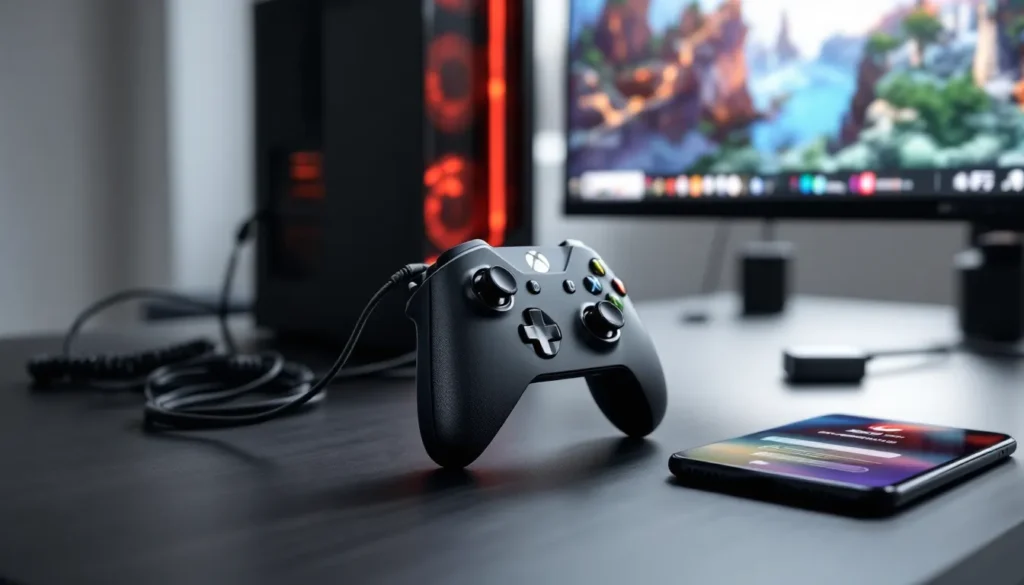
Getting your Xbox One controller working on PC opens up a world of gaming possibilities. Whether you’re diving into AAA titles on Steam, grinding through Game Pass, or playing emulators, the Xbox One controller remains one of the most comfortable and widely supported options for PC gaming. The good news? Connecting it is straightforward, you’ve got three solid methods to choose from, each with its own advantages.
Microsoft’s native Windows support means most games recognize the Xbox One controller instantly, no third-party software required. But the process varies depending on whether you want a wired connection, Bluetooth pairing, or the dedicated Xbox Wireless Adapter. This guide walks through all three methods with exact steps, troubleshooting tips, and performance considerations so you can jump into your games without technical headaches.
Table of Contents
ToggleKey Takeaways
- Connect Xbox One controller to PC using three methods: USB cable for zero-latency wired gaming, Bluetooth for wireless convenience on compatible controllers, or the Xbox Wireless Adapter for 2-4ms latency with console-level reliability.
- Only Xbox One S controllers (2016+) and Xbox Series X|S models support Bluetooth; original Xbox One controllers require a wired cable or Xbox Wireless Adapter for wireless connectivity.
- Windows 10 and 11 automatically install Xbox controller drivers and recognize Xbox One controllers natively without third-party software, making setup straightforward across Steam, Epic Games, and other launchers.
- Use the Xbox Accessories app to customize button mapping, adjust stick sensitivity and dead zones, and create multiple profiles for different game genres like competitive shooters or racing games.
- For competitive gaming and fighting games, choose a wired USB connection for guaranteed zero latency; for casual couch gaming, Bluetooth offers freedom, while the Xbox Wireless Adapter balances both with low latency and wireless range.
- Troubleshoot connection issues by testing different USB ports, updating Bluetooth drivers, checking for wireless interference from Wi-Fi routers, and maintaining controller battery levels above 20% for optimal performance.
Why Use an Xbox One Controller for PC Gaming?
Xbox One controllers dominate PC gaming for good reason. Microsoft built Windows 10 and 11 with native Xbox controller support, meaning drivers install automatically and most games detect the controller without configuration. That’s a massive advantage over PlayStation or third-party controllers that often need additional software layers.
The ergonomics are battle-tested. Millions of gamers have logged countless hours with the Xbox One controller’s shape, and it fits most hand sizes comfortably for extended sessions. The analog stick dead zones are tight enough for precise aiming in shooters but forgiving enough for racing games.
Compatibility is near-universal. Steam, Epic Games Store, Xbox app, Origin, Ubisoft Connect, all of them support Xbox One controllers out of the box. Even older DirectInput games usually work through Steam’s controller configuration system. You’re not fighting software compatibility like you might with less common controllers.
Finally, the price-to-performance ratio is excellent. Used controllers run $30-40, new ones around $60, and you’re getting a premium build quality that rivals controllers twice the price. Plus, if you already own an Xbox One or Series X
|
S, you’ve already got the hardware.
What You’ll Need Before You Start
Checking Your Xbox One Controller Compatibility
Not all Xbox One controllers are created equal when it comes to PC connectivity. There are three generations to be aware of:
Original Xbox One controllers (2013-2016) only support wired connections or the Xbox Wireless Adapter. You can spot these by the glossy plastic around the Xbox button.
Xbox One S controllers (2016-present) added Bluetooth support. These have textured grips and matte plastic around the Xbox button. This is the most versatile option since it supports all three connection methods.
**Xbox Series X
|
S controllers** (2020-present) work identically to Xbox One S controllers on PC, with the same Bluetooth and adapter support plus a share button and improved D-pad.
To check if your controller has Bluetooth, look at the plastic surrounding the Xbox button. If it’s the same plastic as the face of the controller (seamless), you’ve got Bluetooth. If there’s a seam and different plastic, you don’t.
Required Accessories and Cables
For a wired connection, you need a USB-A to Micro-USB cable (for Xbox One controllers) or USB-A to USB-C cable (for Series X
|
S controllers). The cable that comes with Play & Charge kits works perfectly, but any quality data cable will do, not all Micro-USB cables support data transfer, so verify yours does.
For Bluetooth pairing, your PC needs Bluetooth 4.0 or higher. Most laptops from 2016 onward have this built-in. Desktop users might need a USB Bluetooth adapter, grab one that specifically mentions Bluetooth 4.0+ and gaming compatibility. Generic adapters under $10 can introduce input lag.
For the Xbox Wireless Adapter, you’ll need the official Microsoft Xbox Wireless Adapter for Windows 10/11. It’s a small USB dongle that costs around $25 and supports up to eight controllers simultaneously. This uses the same proprietary wireless protocol as Xbox consoles, offering lower latency than Bluetooth.
Method 1: Connect Xbox One Controller to PC via USB Cable
Step-by-Step Wired Connection Guide
Wired connections are the most reliable method with zero latency and no battery concerns. Here’s how to set it up:
- Plug the Micro-USB or USB-C cable into your Xbox One controller’s port on the top edge.
- Connect the other end to any available USB port on your PC. USB 3.0 ports (usually blue) work fine, but USB 2.0 is sufficient.
- Press the Xbox button on the controller. It should light up solid white within 2-3 seconds.
- Wait for Windows to detect the device. You’ll see a notification in the bottom-right corner saying “Setting up a device” or “Xbox Controller connected.”
That’s it. The controller is now active and ready to use in games. The Xbox button will remain lit as long as the cable is connected.
Installing Drivers and Automatic Configuration
Windows 10 and 11 handle driver installation automatically through Windows Update. The first time you connect an Xbox One controller, Windows downloads the Xbox Peripheral driver in the background. This usually takes 10-30 seconds on a decent internet connection.
You can verify the driver installation by:
- Opening Device Manager (right-click Start menu)
- Expanding Xbox Peripherals or Microsoft Xbox One Controller
- Right-clicking the controller and selecting Properties
- Checking the Driver tab, you should see Microsoft as the provider
If Windows doesn’t auto-install drivers (rare, but happens on enterprise Windows installs with restricted updates), you can manually download them from Windows Central’s driver archive or enable Windows Update temporarily.
Wired connections bypass most compatibility issues entirely. There’s no pairing process, no input lag from wireless transmission, and the controller charges while you play if you’re using a Play & Charge Kit. The downside is obvious: you’re tethered to your PC with a cable that’s typically 9 feet long at most.
Method 2: Connect Xbox One Controller to PC Wirelessly with Bluetooth
Verifying Bluetooth Compatibility on Your Controller
Before attempting Bluetooth pairing, confirm your controller supports it. As mentioned earlier, only Xbox One S models (2016+) and Xbox Series X
|
S controllers have Bluetooth built-in.
The easiest identifier: look at the plastic around the Xbox button. Controllers with Bluetooth have a seamless design where the face plate plastic continues around the button. Controllers without Bluetooth have a separate piece of glossy plastic forming a raised ring around the button.
If your controller lacks Bluetooth, skip to Method 3 (Xbox Wireless Adapter) or stick with Method 1 (wired).
Also verify your PC’s Bluetooth capability:
- Open Settings > Devices > Bluetooth & other devices
- Check if there’s a Bluetooth toggle at the top
- If Bluetooth isn’t present, you’ll need a USB Bluetooth adapter
Pairing Your Controller via Bluetooth
Bluetooth pairing is straightforward once you know the button combination:
- Turn on Bluetooth on your PC (Settings > Devices > Bluetooth & other devices > toggle Bluetooth to On)
- Hold the Xbox button on your controller for 3 seconds to power it on. The light will start flashing.
- Press and hold the small pairing button on the top edge of the controller (near the LB bumper) for 3 seconds. The Xbox button will start rapidly flashing, indicating pairing mode.
- On your PC, click “Add Bluetooth or other device” > Bluetooth
- Wait for “Xbox Wireless Controller” to appear in the list (takes 5-15 seconds)
- Click the controller name to pair
- Windows will connect and show “Connected” status. The Xbox button will go solid white.
Your controller is now paired and will auto-connect whenever it’s in range and Bluetooth is enabled. To disconnect, hold the Xbox button for 6 seconds to power off the controller.
Troubleshooting Bluetooth Connection Issues
Controller won’t enter pairing mode: Make sure the controller isn’t already connected to an Xbox console nearby. If it is, power off the console or move the controller out of range. Also verify the controller has sufficient battery, low batteries can prevent Bluetooth pairing.
PC doesn’t detect the controller: Restart Bluetooth on your PC by toggling it off and on in Settings. If that doesn’t work, restart your PC entirely. Bluetooth stacks can get funky after sleep mode.
Controller connects but immediately disconnects: This usually indicates Bluetooth interference or outdated drivers. First, update your Bluetooth drivers through Device Manager. Second, move away from Wi-Fi routers, microwaves, and other 2.4GHz devices that can interfere with Bluetooth.
Input lag or stuttering: Bluetooth introduces 4-8ms of additional latency compared to wired or Xbox Wireless Adapter connections. For competitive shooters or fighting games, this might be noticeable. If lag is severe (100ms+), your Bluetooth adapter might be low-quality. Consider upgrading to a better adapter or switching to the Xbox Wireless Adapter.
One quirk: Windows sometimes connects the controller as both an audio device and a game controller. If you experience audio routing issues, go to Settings > System > Sound and manually set your default output device.
Method 3: Connect Xbox One Controller to PC Using Xbox Wireless Adapter
Setting Up the Xbox Wireless Adapter
The Xbox Wireless Adapter for Windows 10/11 is the premium connection method. It uses the same proprietary wireless protocol as Xbox consoles, delivering lower latency than Bluetooth (typically 2-4ms) and supporting up to eight controllers plus four chat headsets simultaneously.
The adapter is a small black USB dongle about the size of a thumb drive. Here’s how to set it up:
- Plug the Xbox Wireless Adapter into a USB port on your PC. USB 3.0 is preferred but not required.
- Wait for driver installation. Windows should automatically download and install the adapter drivers within 30 seconds. You’ll see a notification when complete.
- Verify installation by checking Device Manager > Xbox Peripherals. You should see “Xbox Wireless Adapter for Windows” listed.
If drivers don’t install automatically, download them manually from the PCMag driver repository or Microsoft’s support site. Newer Windows 11 builds (22H2 and later) have the drivers built into the OS.
Syncing Your Controller to the Adapter
Syncing is nearly identical to pairing with an Xbox console:
- Press the white pairing button on the Xbox Wireless Adapter. It’s a small circular button on the top or side. The adapter’s LED will start rapidly flashing.
- Within 20 seconds, press and hold the pairing button on your Xbox One controller (top edge, near LB) for 3 seconds.
- Both LEDs will flash rapidly for a moment, then go solid white when synced.
- The controller is now connected and will auto-connect to this adapter whenever powered on within range.
The Xbox Wireless Adapter stores up to eight controller pairings, so you don’t need to re-sync every time. Just power on the controller and it’ll connect automatically within 2-3 seconds.
Range and performance: The adapter works reliably up to 19-20 feet with clear line of sight. Walls and furniture reduce this to about 12-15 feet. Latency is consistently 2-4ms, making this the best option for competitive gaming when wired isn’t practical.
One bonus: the adapter supports rechargeable battery packs seamlessly, letting you hot-swap controllers when batteries die without interrupting gameplay.
Configuring Your Xbox One Controller in Windows
Testing Controller Input and Calibration
Once connected, verify the controller is working correctly:
- Open Windows Settings > Devices > Bluetooth & other devices (or just search “controller” in the Start menu)
- Scroll down and click “Devices and Printers”
- Right-click Xbox Controller and select “Game controller settings”
- Click Properties to open the test window
The test window shows real-time input for all buttons, triggers, and analog sticks. Press each button and move each stick through its full range to verify everything registers correctly. The crosshair indicators should return to center when you release the sticks.
Calibration is rarely necessary for Xbox One controllers, Windows handles it automatically. But if you notice stick drift or dead zones, you can recalibrate:
- In the Game controller settings window, select your controller and click Properties
- Go to the Settings tab and click Calibrate
- Follow the wizard, which will ask you to move sticks through full rotations and center positions
Stick drift (inputs registering when sticks are centered) usually indicates hardware wear rather than calibration issues. If calibration doesn’t fix it, the analog stick mechanism might need replacement.
Customizing Button Mapping with Xbox Accessories App
Windows offers the Xbox Accessories app for advanced controller customization. It’s free in the Microsoft Store and works with all Xbox One and Series X
|
S controllers.
Key features:
- Button remapping: Swap any button with any other button (e.g., map A to RB for rapid-fire games)
- Trigger dead zones and sensitivity curves: Adjust how much pressure is needed before triggers register
- Stick sensitivity and dead zones: Fine-tune analog stick responsiveness for different game genres
- Vibration intensity: Reduce or disable rumble to extend battery life
- Multiple profiles: Save up to three custom configurations and switch between them
To remap buttons:
- Open Xbox Accessories app
- Select your connected controller
- Click Configure on one of the three profile slots
- Click any button to reassign it, or adjust sliders for sensitivity settings
- Click Apply to save
Profiles stay on the controller’s firmware, so they work even when connected to other devices. This is particularly useful if you play multiple genres, keep a low-sensitivity profile for tactical shooters and a high-sensitivity one for arena FPS.
Using Your Xbox Controller with Steam and Popular PC Games
Enabling Controller Support in Steam
Steam’s controller support is robust but requires one-time configuration. By default, Steam recognizes Xbox controllers natively, but enabling Steam Input unlocks additional features like gyro support (on Series controllers), custom button layouts, and legacy DirectInput game compatibility.
To enable Xbox controller support in Steam:
- Open Steam and go to Settings > Controller > General Controller Settings
- Check “Xbox Configuration Support” (should be enabled by default)
- Optionally enable “PlayStation Configuration Support” and “Generic Gamepad Configuration Support” if you use multiple controllers
Now Steam will detect your Xbox One controller in all games. The Steam overlay (Shift+Tab) shows controller battery level and allows on-the-fly configuration changes.
Big Picture Mode is Steam’s controller-friendly interface. Launch it from the top-right corner of Steam or press the Xbox button on your controller while Steam is focused. You can navigate the entire Steam library, store, and settings using only the controller.
For games with mixed or negative controller reviews, check the Steam Input settings. Some older games expect DirectInput instead of XInput, and Steam can translate between them automatically, but you need to enable it per-game.
Game-Specific Controller Settings
Most modern games auto-detect Xbox controllers and display correct button prompts (A/B/X/Y instead of keyboard keys). But configuration varies by game:
Competitive shooters (Apex Legends, Valorant, Rainbow Six Siege) usually require manual sensitivity tuning. Start with these settings as a baseline:
- Look sensitivity: 4-6 (game-dependent)
- ADS sensitivity multiplier: 0.8-1.0
- Response curve: Linear or Classic (avoid Dynamic unless you prefer heavy aim assist)
- Dead zones: 0.05-0.10 (lower is better for precise aiming)
Action RPGs (Elden Ring, Cyberpunk 2077) work great out-of-the-box but benefit from remapping sprint to a bumper instead of clicking the stick to prevent accidental camera movement during intense combat.
Racing games (Forza Horizon 5, Dirt Rally 2.0) need trigger dead zone adjustments. Set triggers to 0% dead zone and adjust the Inner Dead Zone slider to eliminate trigger sticking. For gaming audio immersion, pair your controller with a quality headset.
Emulators (RPCS3, Dolphin, PCSX2) require manual controller mapping since they emulate other systems. Each emulator has a controller config section, map buttons to match the original console layout. Some emulators save Xbox controller profiles you can download from their forums.
For non-Steam games, you can add them to your Steam library (Games > Add a Non-Steam Game) to use Steam Input features. This works with Epic Games, EA app, and most other launchers.
Common Connection Problems and How to Fix Them
Controller Not Recognized by Windows
If Windows doesn’t detect your controller at all:
For wired connections:
- Try a different USB port. Some motherboards disable certain ports to save power.
- Test a different cable. Not all Micro-USB cables support data, some are charge-only.
- Check Device Manager for unknown devices. If you see a device with a yellow exclamation mark under “Other devices,” right-click and update the driver.
- Disable USB selective suspend: Control Panel > Power Options > Change plan settings > Change advanced power settings > USB settings > USB selective suspend setting > Disabled.
For Bluetooth connections:
- Remove the controller from your Bluetooth devices list and re-pair from scratch.
- Update your Bluetooth drivers through Device Manager or your motherboard manufacturer’s site.
- Some Bluetooth adapters conflict with Wi-Fi on the same USB hub. Try moving the adapter to a different USB port.
For Xbox Wireless Adapter:
- Unplug and replug the adapter. Sometimes the driver fails to initialize on boot.
- Try the adapter on a different PC to rule out hardware failure.
- Check if the adapter’s LED lights up. No light = dead adapter or missing drivers.
Input Lag and Disconnection Issues
Bluetooth lag is the most common culprit. If you’re experiencing 50-100ms+ delays or frequent disconnections:
- Move closer to your PC. Bluetooth range drops significantly through walls.
- Disable other Bluetooth devices temporarily to rule out interference.
- Update your wireless gaming setup by switching to an Xbox Wireless Adapter for sub-5ms latency.
- Check Windows Power Settings: Settings > System > Power & battery > Power mode should be set to “Best performance” when plugged in.
Wireless adapter interference can happen near Wi-Fi routers, wireless headsets, or even RGB lighting controllers. Move the adapter away from other wireless devices using a USB extension cable.
Windows Game Mode sometimes causes input lag spikes. Toggle it off (Settings > Gaming > Game Mode) and test if performance improves.
Battery and Power Management Tips
Xbox One controllers use two AA batteries or a rechargeable battery pack. Battery management affects wireless performance:
Low battery symptoms:
- Controller disconnects randomly
- Xbox button dims or flashes
- Input lag increases
- Controller takes longer to reconnect after powering on
Replace or recharge batteries before they drop below 20%. Wireless performance degrades significantly at low charge.
Extending battery life:
- Lower vibration intensity or disable it entirely in Xbox Accessories app (saves 20-30% battery)
- Power off the controller when not in use (hold Xbox button for 6 seconds) instead of letting it auto-sleep
- Use wired connection during long sessions to avoid battery drain
- Invest in rechargeable battery solutions, standard alkaline batteries last 30-40 hours, while quality rechargeables offer similar performance with lower long-term cost
Windows shows controller battery level in the Bluetooth settings or Xbox Accessories app. The Xbox button LED also indicates charge: solid white = good, flashing = low battery.
If you notice your controller dying faster than normal, check for firmware updates in the Xbox Accessories app. Microsoft occasionally releases updates that improve power management.
Wired vs. Wireless vs. Xbox Wireless Adapter: Which Connection Method Is Best?
Each connection method has distinct advantages depending on your setup and gaming style:
Wired (USB cable):
- Latency: 0ms (direct electrical connection)
- Reliability: 100%, no disconnections or interference
- Battery: Charges while playing with Play & Charge Kit
- Range: Limited by cable length (typically 6-10 feet)
- Best for: Competitive gaming, desk setups, fighting games, rhythm games where even 4-8ms matters
Bluetooth:
- Latency: 4-8ms (can spike to 30-50ms with cheap adapters or interference)
- Reliability: 85-95% depending on environment and adapter quality
- Battery: Drains battery during use
- Range: 20-30 feet clear line of sight, 10-15 feet through walls
- Best for: Couch gaming, single-player games, casual play, laptops without USB ports to spare
Xbox Wireless Adapter:
- Latency: 2-4ms (nearly identical to wired)
- Reliability: 98%+, comparable to console experience
- Battery: Drains battery during use
- Range: 19-20 feet clear, 12-15 feet through obstacles
- Best for: Competitive wireless gaming, multi-controller setups, living room PC gaming, replacing Bluetooth on systems with poor adapters
For competitive shooters, fighting games, or any scenario where frame-perfect inputs matter, wired is king. The zero-latency connection eliminates one variable entirely.
For most gamers, the Xbox Wireless Adapter offers the best balance. The 2-4ms latency is imperceptible in all but the most demanding scenarios, and the freedom of wireless is worth the $25 investment.
Bluetooth makes sense for laptops, casual gaming, or if you already have quality Bluetooth built into your PC. Don’t use it for competitive play unless you’ve tested your specific setup and confirmed low latency.
One final consideration: if you have Xbox hardware beyond just the controller, the Xbox Wireless Adapter creates a unified ecosystem where controllers sync across both PC and console seamlessly.
Conclusion
Getting your Xbox One controller working on PC is one of the best quality-of-life upgrades you can make for PC gaming. Whether you go wired for zero-latency competitive play, Bluetooth for casual convenience, or the Xbox Wireless Adapter for the best of both worlds, Windows’ native support makes the process painless.
The key is matching the connection method to your gaming needs. Desk gamers benefit from wired reliability, couch gamers appreciate wireless freedom, and competitive players get near-wired performance from the Xbox Wireless Adapter. With the Xbox Accessories app and Steam’s controller configuration tools, you can fine-tune every aspect of the experience to match your preferences.
Now that your controller is connected and configured, it’s time to jump into your game library and experience PC gaming with the comfort and precision that made Xbox controllers an industry standard.