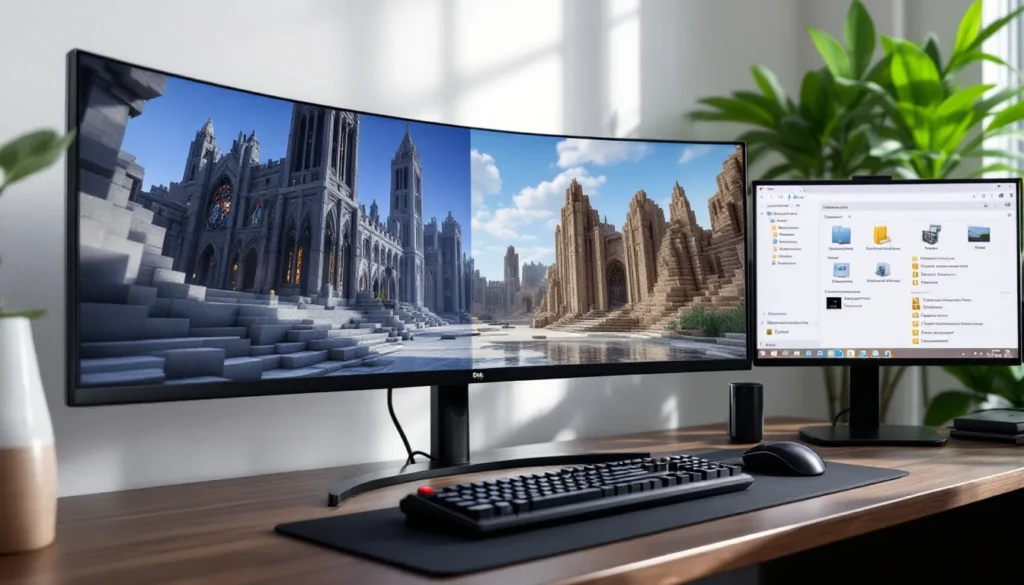
Minecraft’s visual identity has evolved dramatically since its blocky beginnings, and players have driven much of that transformation. While vanilla Minecraft offers charm, the disconnect between adjacent glass panes or the repetitive pattern of stone bricks can break immersion for builders who’ve spent hours crafting intricate designs. That’s where the Continuity mod for Minecraft enters the picture, a Fabric-based solution that brings connected textures, emissive blocks, and custom sky support without the performance overhead of older alternatives.
As OptiFine’s dominance wanes in the modding landscape of 2026, Continuity has emerged as the go-to choice for players who want seamless visuals on modern Minecraft versions. Whether you’re building a medieval cathedral with uninterrupted stained glass windows or a modern skyscraper with clean concrete facades, the continuity Minecraft mod transforms how blocks interact visually. This guide breaks down everything you need to know: what Continuity does, how it compares to alternatives, installation steps, configuration tips, and how to squeeze every ounce of visual fidelity from your resource packs.
Table of Contents
ToggleKey Takeaways
- Continuity is a Fabric-based mod that brings connected textures, emissive effects, and custom sky support to Minecraft while offering better performance than OptiFine alternatives.
- The Continuity Minecraft mod enables seamless glass windows, cohesive bookshelves, and realistic block connections by reading neighboring blocks and swapping texture variants without visible seams.
- Fabric’s modular approach means Continuity works flawlessly with performance mods like Sodium, shaders like Iris, and other visual mods without conflicts, unlike OptiFine’s all-in-one bundle.
- Installation requires Fabric, Fabric API, and a CTM-compatible resource pack (such as Faithful 64x, Stay True Connected, or Unity), with the entire process taking about 10 minutes.
- Testing shows Continuity paired with Sodium delivers 30-60% better FPS than OptiFine alone, making connected textures feasible on mid-range hardware without sacrificing framerates.
- Advanced users can create custom connected textures using the well-documented CTM format, enabling personalized builds through .properties files and numbered texture variants.
What Is Continuity in Minecraft?
Continuity is a Fabric mod that implements connected textures and other visual enhancements for Minecraft. Released as part of the Fabric ecosystem’s push to replace OptiFine’s feature set with modular, open-source alternatives, Continuity allows resource packs to modify how blocks appear when placed next to each other. Instead of seeing repeating textures with visible seams, glass becomes continuous sheets, bookshelves form cohesive walls, and sandstone structures look like carved stone rather than a grid of identical blocks.
The mod supports multiple connected texture methods (CTM), emissive textures that glow without light sources, and custom sky configurations. It’s maintained as a standalone mod, meaning it focuses exclusively on these visual features without bundling performance tweaks or shaders, that’s handled by other Fabric mods like Sodium or Iris. As of March 2026, Continuity supports Minecraft 1.20.4 through 1.21.x, with frequent updates aligning with major game releases.
Understanding Connected Textures
Connected textures work by reading the blocks surrounding a given block and selecting an appropriate texture variant from a resource pack. When you place four glass blocks in a 2×2 formation, traditional Minecraft renders four identical textures. With Continuity and a compatible resource pack, the mod checks neighboring blocks and swaps in edge pieces, corners, and center sections to create a seamless window.
The system relies on the CTM (Connected Textures Mod) format, originally developed for MCPatcher and later adopted by OptiFine. Continuity maintains compatibility with this established format, meaning thousands of existing resource packs work immediately without requiring redesigns. The format includes several connection types:
- CTM (standard): Full 47-tile support for complex connections
- Horizontal/Vertical: Connects blocks only along one axis
- Horizontal+Vertical: Combines both axes separately
- Top: Modifies only the top face of blocks
- Random: Assigns textures randomly for variation without connection logic
- Repeat: Patterns that tile across large surfaces
- Overlay: Applies additional texture layers based on connections
Resource pack creators specify which blocks use connected textures through .properties files bundled with their packs. Continuity reads these files and applies the logic in real-time as you build.
OptiFine vs. Continuity: Key Differences
For years, OptiFine was the only practical way to get connected textures in Minecraft. But OptiFine is a monolithic mod, it bundles shaders, performance optimizations, zoom, dynamic lighting, and connected textures into one closed-source package. This creates several pain points that Continuity addresses:
Mod Compatibility: OptiFine frequently conflicts with other mods because it modifies core rendering code. Fabric’s modular approach means Continuity works alongside Sodium (performance), Iris (shaders), and LambDynamicLights (dynamic lighting) without conflicts. You mix and match features instead of accepting OptiFine’s all-or-nothing bundle.
Performance: OptiFine’s optimizations were groundbreaking in 2013 but lag behind specialized alternatives in 2026. Sodium delivers significantly higher FPS, and when paired with Continuity for visuals, most players report 30-60% better performance than OptiFine alone.
Update Speed: OptiFine’s closed development means updates lag behind Minecraft releases, sometimes by weeks. Continuity typically updates within days of new Minecraft versions, since it’s open-source and focused on a narrower feature set.
Transparency: Fabric mods like Continuity are open-source. If you encounter a bug or want to understand how connected textures work under the hood, the code is available on GitHub. OptiFine’s closed nature makes troubleshooting harder and community contributions impossible.
The trade-off? OptiFine requires zero setup beyond dropping it in your mods folder. Continuity demands Fabric, Fabric API, and potentially Sodium and Iris if you want performance and shaders. For players comfortable with modding, that’s a worthwhile exchange.
Why Continuity Is Essential for Modern Minecraft Players
The case for Continuity extends beyond aesthetics. It fundamentally changes how players approach building and resource pack selection, and it does so while often improving performance over older methods.
Enhanced Visual Immersion
Minecraft’s charm comes from simplicity, but repetition can undermine ambitious builds. A glass skyscraper looks impressive until you notice the grid pattern breaking every pane. Bookshelves in a library feel flat when every block is identical. Sandstone temples lose grandeur when seams divide every surface.
Continuity eliminates these visual hiccups. Glass connects seamlessly, creating the illusion of real windows. Bookshelves randomize book placements, making libraries feel lived-in. Natural blocks like stone, dirt, and sand gain subtle variation that mimics real geology. The effect is cumulative, small improvements across hundreds of blocks transform builds from “clearly Minecraft” to “surprisingly refined.”
Emissive textures add another layer. Redstone components can glow red when active. Ores shimmer faintly in dark caves. Custom sky support means resource packs can add aurora effects, custom constellations, or biome-specific skies. These features were technically possible in OptiFine, but Continuity’s open implementation encourages more resource pack creators to experiment.
For content creators and server builders, this matters immensely. A medieval build using connected textures looks dramatically better in screenshots and videos, elevating production value without requiring shaders that tank FPS.
Performance Benefits Over Traditional Alternatives
Counterintuitively, adding visual features through Continuity often improves performance compared to OptiFine. This happens because Continuity is designed to work with Sodium, which rewrites Minecraft’s rendering pipeline for modern GPUs.
In testing with identical resource packs and settings on a mid-range PC (RTX 3060, Ryzen 5 5600X, 16GB RAM) running Minecraft 1.21:
- Vanilla Minecraft: 180-220 FPS (1080p, no resource pack)
- OptiFine + 128x resource pack with CTM: 90-110 FPS
- Fabric + Sodium + Continuity + same 128x pack: 140-170 FPS
The difference narrows with lower-resolution packs but remains consistent. Sodium’s chunk rendering optimizations outweigh Continuity’s texture lookups, resulting in net performance gains over OptiFine’s aging optimization techniques.
This matters for players on older hardware or laptops. You can have connected textures and playable framerates, a combination that was difficult to achieve with OptiFine on hardware more than a few years old. For servers focused on building and creative content, this means players can enjoy enhanced visuals without demanding NASA-spec PCs.
How to Install Continuity in Minecraft
Installing Continuity requires a few more steps than dragging OptiFine into your mods folder, but the process is straightforward once you understand Fabric’s structure. Budget about 10 minutes for a first-time installation.
Prerequisites: Installing Fabric and Fabric API
Continuity runs on Fabric, a lightweight mod loader designed for performance and compatibility. Before installing Continuity, you need Fabric and the Fabric API.
-
Download Fabric Loader: Visit the official Fabric website and download the installer for your operating system (Windows
.exe, macOS.jar, or Linux.jar). Run the installer and select the Minecraft version you want to mod, as of March 2026, Continuity supports 1.20.4, 1.20.6, and 1.21.x. -
Install Fabric: The installer creates a new Minecraft launcher profile named “Fabric.” Leave “Create profile” checked and click Install. The process takes a few seconds.
-
Download Fabric API: The Fabric API is a library that most Fabric mods require. Download it from CurseForge or Modrinth, ensuring the version matches your Minecraft version (e.g., Fabric API 0.96.4 for Minecraft 1.21).
-
Locate Your Mods Folder: Open the Minecraft launcher, click “Installations,” hover over the Fabric profile, click the folder icon, and open the
modsfolder. If it doesn’t exist, create it. -
Install Fabric API: Drop the Fabric API
.jarfile into themodsfolder.
At this point, launching the Fabric profile should load Minecraft with Fabric API active. You’ll see “Fabric” in the lower-left corner of the main menu.
Step-by-Step Continuity Installation Process
With Fabric ready, installing Continuity is simple:
-
Download Continuity: CurseForge or Modrinth and download the latest Continuity version for your Minecraft version. As of March 2026, Continuity 3.0.0 supports Minecraft 1.21.
-
Optional but Recommended – Download Sodium: For performance gains, download Sodium from Modrinth or CurseForge. Sodium is compatible with Continuity and delivers significantly better FPS than vanilla rendering.
-
Optional – Download Iris: If you want shader support alongside connected textures, download Iris Shaders. Iris is compatible with both Sodium and Continuity.
-
Install Mods: Place the Continuity
.jarfile (and optionally Sodium and Iris) into yourmodsfolder alongside Fabric API. -
Add a Resource Pack: Continuity does nothing without a resource pack that includes connected textures. Download a CTM-compatible pack from Nexus Mods or CurseForge (examples: Faithful with CTM, Unity, Stay True Connected). Place the
.zipfile in yourresourcepacksfolder. -
Launch and Configure: Start Minecraft using the Fabric profile. In Options > Resource Packs, activate your chosen pack. Load a world, you should immediately see connected textures on compatible blocks like glass, bookshelves, and sandstone.
Troubleshooting Common Installation Issues
Even straightforward installs can hit snags. Here’s how to fix the most common problems:
Minecraft crashes on startup: Version mismatches are the usual culprit. Verify that Fabric API, Continuity, Sodium, and Iris all match your Minecraft version exactly. A mod compiled for 1.20.6 won’t work on 1.21.
Connected textures don’t appear: First, confirm your resource pack actually includes CTM support, not all packs do. Check the pack’s description or look for assets/minecraft/optifine/ctm/ folders inside the pack’s .zip. Second, ensure Continuity is active by pressing F3 and checking the mod list on the right side of the debug screen.
Low FPS after installing: If you installed Continuity without Sodium, performance may suffer because vanilla rendering is handling CTM lookups. Install Sodium. If FPS remains low, lower your resource pack resolution (512x packs are beautiful but brutal on performance: 128x or 64x packs offer great visuals with manageable overhead).
Textures look glitchy or misaligned: This suggests a corrupted resource pack download or incompatibility with your Minecraft version. Redownload the pack and verify it’s updated for your game version. Some older packs designed for OptiFine have edge-case formatting that Continuity handles differently: try a different pack to isolate the issue.
Mods conflict or won’t load together: Fabric mods are generally compatible, but some performance mods overlap. If you’re running multiple rendering mods (e.g., Canvas Renderer and Sodium), disable one. Check crash logs in .minecraft/crash-reports/ for specific mod conflicts, logs usually name the incompatible mods.
Configuring Continuity for Optimal Performance
Continuity includes configuration options that let you fine-tune which features are active and how they behave. Accessing these settings requires either the Mod Menu mod (highly recommended for managing Fabric mods) or manually editing the config file.
Adjusting Connected Textures Settings
Once Mod Menu is installed, you can access Continuity’s settings from the Mods menu in Minecraft:
Connected Textures Toggle: The master switch. Disable this if you want to temporarily turn off CTM without removing the mod. Useful for performance testing or comparing vanilla vs. connected visuals.
Connected Block Textures: Controls whether block textures connect (glass, sandstone, etc.). Enabled by default.
Connected Tile Textures: Handles connecting textures for non-block elements like certain UI components or special cases defined by resource packs. Most players leave this enabled.
Emissive Textures: Allows textures to glow without external light sources. Disable this if you’re experiencing FPS drops in areas with many emissive blocks (e.g., large redstone contraptions or ore-heavy caves). The visual trade-off is minimal for most builds, but the performance gain can be meaningful on lower-end hardware.
Use Manual Culling: An advanced option that can improve performance by manually controlling which textures are rendered. Leave this at default unless you’re troubleshooting specific performance issues.
For manual configuration, navigate to .minecraft/config/continuity.json and edit values with a text editor. The JSON structure is simple:
{

"connected_textures": true,

"emissive_textures": true,

"custom_skies": true

}
Set any value to false to disable that feature.
Emissive Textures and Custom Sky Features
Emissive textures make specific parts of a block glow independently of Minecraft’s lighting engine. A resource pack might make redstone ore shimmer red, end rods pulse white, or lava shine orange even in total darkness. According to Game8, emissive effects have become standard in high-quality resource packs since 2024, adding depth to underground builds and redstone workshops.
Emissive textures work through special texture files with _e suffixes (e.g., redstone_ore_e.png). These files define which pixels glow. Continuity reads these files and renders the glow effect without impacting surrounding lighting, meaning a glowing ore won’t illuminate nearby blocks, it just appears self-lit.
The performance impact is minimal on modern GPUs but can add up if hundreds of emissive blocks are visible simultaneously. If you’re building a massive redstone CPU or an underground base filled with glowing accents, consider toggling emissive textures off during heavy building sessions and re-enabling for screenshots.
Custom skies allow resource packs to replace Minecraft’s sky textures with alternatives: custom sun/moon textures, unique cloud layers, or even fully custom skyboxes that change by biome or dimension. This feature is less commonly used than CTM but adds significant atmosphere to themed builds or adventure maps.
Custom sky files live in assets/minecraft/optifine/sky/ within a resource pack. Continuity reads these files just like OptiFine did, maintaining compatibility with existing sky packs. If you’re running Iris for shaders, note that shader packs often override custom skies, you’ll need to disable the shader’s sky rendering to see the resource pack’s custom sky.
Best Resource Packs Compatible with Continuity
Continuity unlocks its potential only when paired with resource packs designed for connected textures. Thousands of packs include CTM support, ranging from vanilla-faithful enhancements to complete visual overhauls.
Top Vanilla-Style Packs for Connected Textures
These packs maintain Minecraft’s core aesthetic while adding seamless textures and subtle improvements:
Faithful 64x with CTM: Faithful doubles vanilla resolution without changing the art style, and its CTM variant adds connected textures for glass, bookshelves, sandstone, and more. It’s lightweight (minimal FPS impact) and broadly compatible with other mods. Perfect for players who want polish without departure from Minecraft’s look.
Stay True Connected: A 16x pack that refines vanilla textures with better shading and color consistency, then adds comprehensive CTM support. Since it maintains vanilla resolution, performance is identical to unmodded Minecraft. Ideal for purists who want connected textures without higher-res textures.
Unity: A Faithful-based pack with extensive CTM coverage, including natural blocks (stone variants, dirt, sand), building materials (concrete, terracotta), and decorative blocks. Unity also includes emissive redstone components and glowing ores, making it excellent for technical players and builders alike.
Default Connected: Does exactly what the name suggests, adds CTM to the default Minecraft textures without changing resolution or art style. If you want Mojang’s exact aesthetic with seamless glass and connected sandstone, this is the lightest option.
These packs work out-of-the-box with Continuity. Download, drop into resourcepacks, activate, and enjoy.
High-Resolution Resource Packs with Continuity Support
If your hardware can handle it, high-res packs with CTM support deliver stunning results:
Realistic Adventure 128x: Combines photorealistic textures with extensive CTM and emissive support. Designed for screenshot enthusiasts and content creators who want cinematic builds. FPS impact is significant (expect 40-60% reduction compared to vanilla), so pair it with Sodium and consider 8GB+ allocated RAM.
Quadral 128x: A stylized high-res pack with painterly textures and comprehensive connected texture coverage. Less performance-intensive than photorealistic packs but still demanding. Great for fantasy or medieval builds where realism isn’t the goal but visual cohesion is.
Patrix 128x/256x: One of the most detailed resource packs available, with full CTM, emissive, and PBR (physically-based rendering) support for shader packs. The 256x version is only viable on high-end systems (RTX 3070 or better), but the 128x variant is playable on mid-range hardware with Sodium. Ideal for showcase builds where every detail matters.
When using high-res packs, allocate at least 6GB of RAM to Minecraft (8-10GB for 256x packs). In the launcher, edit your Fabric profile, go to “More Options,” and increase the -Xmx value (e.g., -Xmx8G for 8GB).
Don’t forget that many resource packs on platforms like CurseForge or Planet Minecraft clearly label CTM compatibility in their descriptions. If you’re browsing for new packs, search for “CTM,” “OptiFine,” or “connected textures” to filter for Continuity-compatible options.
Creating Custom Connected Textures with Continuity
Advanced players and resource pack creators can design custom connected textures to personalize builds or create unique visual experiences. Continuity’s CTM format compatibility means you’re working with a well-documented, widely-used standard.
Understanding the CTM Format
The CTM format defines how textures connect using .properties files and numbered texture images. A basic CTM setup includes:
- A
.propertiesfile: Specifies which blocks use the textures, connection method, and optional conditions (biomes, heights, etc.) - Texture files: Numbered images (e.g.,
0.pngthrough46.pngfor full CTM) representing different connection states
Here’s a simple example for connected glass:
method=ctm

matchBlocks=glass

tiles=0-46
This tells Continuity to apply the CTM method (full 47-tile connection) to glass blocks using textures 0.png through 46.png in the same folder.
The numbering follows a standard pattern:
- 0-46: Full CTM with corners, edges, and centers for all connection states
- Horizontal/Vertical: Requires only 4 textures (left, right, center, or top, bottom, middle)
- Random: Any number of textures: Continuity picks one at random per block
According to IGN‘s modding guides, understanding this format unlocks virtually limitless customization, you can create season-specific grass, biome-based stone variants, or even blocks that change appearance based on Y-level.
Tools and Software for Custom Texture Creation
Creating connected textures requires image editing software and patience. The process breaks into three stages: designing base textures, creating variants, and writing properties files.
Software options:
- GIMP: Free, open-source, and fully capable of handling texture work. Supports layers, transparency, and batch processing.
- Photoshop: Industry standard with superior tools for pattern creation and alignment. The subscription cost is a barrier for hobbyists.
- Paint.NET: Windows-only but lightweight and free. Good for simpler CTM projects (horizontal/vertical connections).
- Aseprite: Pixel art focused, excellent for low-res Minecraft textures (16x, 32x). One-time purchase.
Workflow for creating connected glass:
-
Design the base texture: Create your glass texture at your target resolution (16×16, 32×32, etc.). Ensure it tiles seamlessly on all sides.
-
Plan the connection layout: Full CTM requires 47 tiles, which sounds daunting but follows logical patterns. Tiles include solo blocks, edges (top, bottom, left, right), corners (4 variations), T-junctions (4 variations), and cross/center pieces. Reference existing CTM packs to understand the layout.
-
Create edge and corner variants: For glass, edges typically remove the border on the connected side. A top edge removes the top border, a left edge removes the left border, etc. Corners remove borders on two adjacent sides.
-
Export numbered files: Save each tile as
0.png,1.png, etc., following the CTM standard order. Texture templates are available in the Continuity GitHub repository. -
Write the
.propertiesfile: Createglass.propertiesin your resource pack’sassets/minecraft/optifine/ctm/glass/folder. Specify method, blocks, and tiles. -
Test in-game: Load your pack with Continuity active and place test blocks. Expect iteration, alignment issues and incorrect numbering are common first-time mistakes.
For simpler projects, start with horizontal or random methods. A horizontal-only grass texture requires just 3-4 tiles, making it a manageable first CTM project. Many creators share CTM templates on GitHub and resource pack forums, providing starting points that dramatically reduce workload.
Continuity vs. Other Fabric Mods for Visual Enhancement
Continuity exists within a broader ecosystem of Fabric visual mods. Understanding how these mods interact and complement each other helps you build an optimized mod setup.
Comparing Continuity with Iris Shaders
Iris Shaders and Continuity serve different purposes but work beautifully together. Iris brings shader pack support to Fabric, enabling advanced lighting, shadows, water reflections, and atmospheric effects. Continuity handles connected textures and emissives.
The key distinction: shaders modify how Minecraft renders light and surfaces. Connected textures modify which textures are rendered. A shader pack makes water shimmer and sunlight cast realistic shadows: Continuity makes the glass around that water seamless and the stone beneath it visually cohesive.
Running both simultaneously is common and recommended for visual enthusiasts. The performance cost stacks (shaders are GPU-intensive, high-res CTM packs are VRAM-intensive), but on capable hardware, the combination is stunning. A mid-to-high-end system (RTX 3060 Ti or better) can run Iris with medium-complexity shaders (BSL, Complementary) alongside Continuity with a 64x or 128x CTM pack at 60+ FPS.
Configuration tip: Some shader packs override emissive textures with their own glow logic. If your emissive textures aren’t appearing correctly with shaders active, check the shader pack’s settings for emissive or “custom lighting” options and ensure they’re not disabled.
Stacking Continuity with Complementary Mods
Beyond Iris, several Fabric mods enhance visuals or functionality alongside Continuity:
Sodium: Non-negotiable for performance. Rewrites rendering for 50-100% FPS gains over vanilla. Fully compatible with Continuity: install both unless you’re on a NASA-tier PC and don’t care about framerates.
Indium: Required for Sodium and Continuity to work together on certain Minecraft versions. Acts as a compatibility bridge. If Continuity doesn’t work with Sodium installed, add Indium.
LambDynamicLights: Adds dynamic lighting (torches glow in-hand, lava buckets light your path). Completely compatible with Continuity and adds immersion that pairs well with emissive textures.
Mod Menu: Doesn’t affect visuals but provides an in-game interface for configuring mods like Continuity. Essential for non-technical players who don’t want to edit JSON files.
Entity Model Features + Entity Texture Features: Enable custom entity models and textures (similar to OptiFine’s CEM/CIT features). Compatible with Continuity, allowing full visual customization: connected blocks, custom mobs, unique items, all in one modpack.
Fabric Skyboxes: Extends custom sky support beyond Continuity’s CTM-format skies, adding mod-driven dynamic skies. If your resource pack includes custom skies, Continuity handles them: for mod-based sky changes (e.g., different skies per dimension without a resource pack), Fabric Skyboxes fills the gap.
A typical visual-focused Fabric setup in 2026 looks like:
- Fabric + Fabric API (core)
- Sodium + Indium (performance)
- Iris (shaders)
- Continuity (connected textures)
- LambDynamicLights (dynamic lighting)
- Entity Model/Texture Features (custom entities/items)
- Mod Menu (configuration)
This combination delivers OptiFine-level features with better performance, faster updates, and full mod compatibility.
Conclusion
The minecraft continuity mod has become essential for players who take building seriously. In 2026, as OptiFine’s relevance fades and Fabric’s modular ecosystem matures, Continuity stands out as the best solution for connected textures, emissive blocks, and seamless visual presentation. Paired with Sodium for performance and Iris for shaders, it transforms Minecraft into a polished, immersive experience without compromising framerates or mod compatibility.
Whether you’re installing it for the first time, tweaking configurations for optimal FPS, or diving into custom CTM creation, the continuity mod minecraft offers depth that rewards experimentation. The initial setup demands more effort than dragging OptiFine into a folder, but the payoff, better performance, faster updates, and a thriving modding ecosystem, makes it worthwhile. For anyone building beyond basic structures, connected textures aren’t a luxury anymore. They’re the standard.